As an Amazon Associate, we earn from qualifying purchases. Some links on this site are affiliate links at no extra cost to you. Our recommendations are based on thorough research and editorial judgment.

Do Turtle Beach Headphones Work on Xbox?

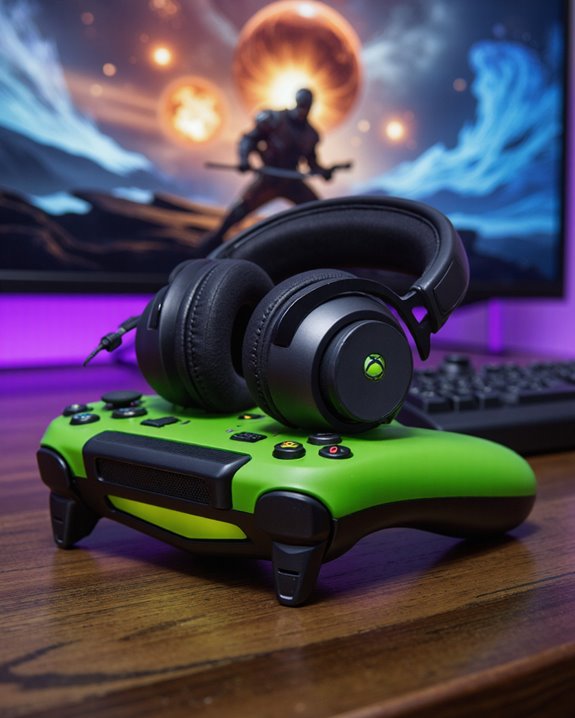
Short answer: yes, Turtle Beach headphones work on Xbox, and in most cases they work really well. I’ve paired half a dozen Turtle Beach models with an Xbox Series X over the past couple of years, and the compatibility side of things is one of the least fussy parts of console gaming right now. Series X, Series S, and the original Xbox One all get official support, either through 2.4GHz wireless or a plain 3.5mm cable, and a handful of older models can even hop onto an Xbox 360 with the right adapter. You’re getting 50mm-60mm drivers, spatial audio, and mic noise reduction that’s actually AI-driven rather than a buzzword on the box. The Stealth 600 Gen 3, for example, will run up to 80 hours on a single charge – long enough that battery anxiety mostly disappears. Setup is mostly pairing and letting a firmware update run its course, which I’ll walk through further down.
Key Takeaways
- Turtle Beach carries official Xbox licensing across nearly its whole current lineup, covering Series X, Series S, and Xbox One.
- Wireless models lean on 2.4GHz for the connection; wired ones just need a 3.5mm jack – both work without drama.
- Party chat, game/chat audio mixing, and spatial sound all hold up in practice on Xbox, not just on the spec sheet.
- Pairing takes a couple of minutes: power everything on, hit the connect buttons, then confirm the audio output in your Xbox settings.
- The free Turtle Beach Audio Hub app handles firmware updates and can noticeably improve performance over time.
Do Turtle Beach Headphones Work on Xbox? Here’s the Compatibility Breakdown
You may be interested
The compatibility question comes down to licensing plus a bit of engineering, and Turtle Beach has both boxes checked. Newer flagships like the Stealth Pro and Stealth 600 Gen 2 MAX carry official Xbox licensing, with explicit support for Series X, Series S, and Xbox One. That licensing isn’t just a sticker – it’s why party chat and game-audio mixing actually behave themselves inside the Xbox ecosystem instead of glitching out. Turtle Beach’s own documentation validates the Stealth 600 Gen 3 for Xbox One S, One X, and Series X|S, and several legacy headsets still manage backward compatibility with Xbox 360 if you’ve got the right adapter on hand. Add in tuned firmware and Xbox-specific audio processing, and you end up with a headset that performs consistently whether you’re grinding ranked matches or just relaxing with a single-player campaign.
Wireless or Wired: How These Headsets Actually Connect
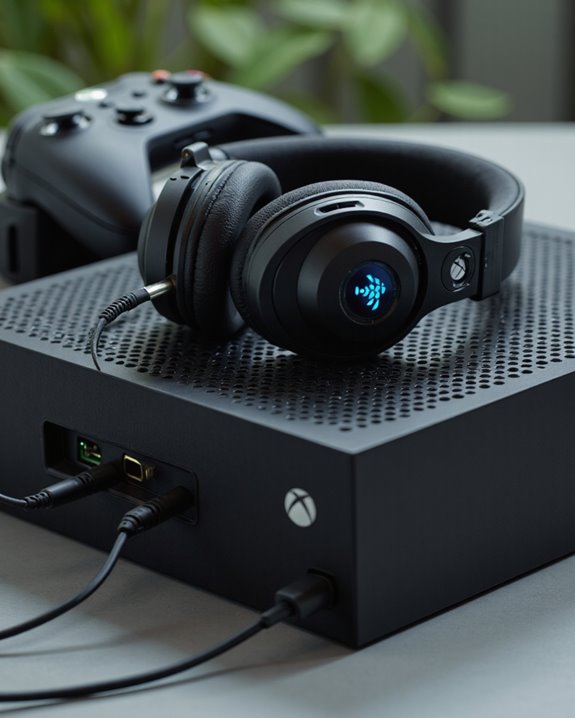
Connectivity is where Turtle Beach really separates itself from the pack – there’s an option for almost every preference. Models built around 2.4GHz wireless plug straight into Xbox Series X|S and Xbox One and deliver low-latency audio with no perceptible lag, which matters more than people think in fast-paced shooters. Dual-wireless headsets go a step further, adding Bluetooth 5.1 or 5.2 so you can hop between your console and a phone call without swapping hardware, and battery life on these tends to clear 40 hours per charge. Prefer to skip batteries altogether? A 3.5mm cable gives you rock-solid, zero-latency audio that works across Xbox controllers and just about any other device with a headphone jack. Some hybrid models let you switch between wireless and wired on the fly, which is handy if your battery dies mid-session and you don’t want to stop playing. Worth noting too: many of these headsets pair with low-latency 2.4GHz wireless tech specifically to keep game audio synced with what’s happening on screen.
Features That Actually Improve Your Xbox Sessions
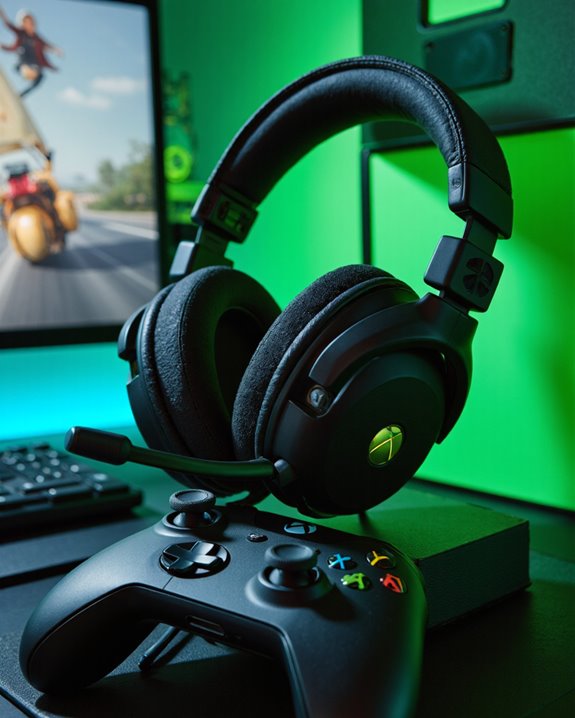
What makes a Turtle Beach headset feel like more than just “compatible” with Xbox comes down to the feature set underneath the shell. Big drivers – 50mm Nanoclear™ or 60mm Eclipse™ depending on the model – cover a 20Hz-20kHz frequency range and deliver a genuinely spatial soundscape, so footsteps and gunfire land where they should instead of blurring into mush. Combine that with spatial audio support and directional cues become a real competitive advantage, not just a nice-to-have. On the mic side, AI-based noise reduction, flip-to-mute, and Turtle Beach’s S.M.A.R.T. tech filter out ambient noise so your squad actually hears you instead of your keyboard or your dog barking in the background. Comfort matters too during a four-hour session: memory foam ear cushions, headbands that stay light without feeling flimsy, and breathable fabric all keep things bearable well past the point where cheaper headsets start to hurt. Long battery runtimes, USB-C charging, and flexible connectivity round out the package and tie it all back to smooth Xbox integration.
Turtle Beach Models Worth Knowing About for Xbox
With the feature list covered, it’s worth naming names – because not every Turtle Beach headset targets the same gamer. The Stealth 600 Gen 3 currently leads the lineup, combining wireless and Bluetooth connectivity, 50mm Nanoclear™ drivers, and up to 80 hours of battery life for anyone who wants versatility without babysitting a charger. The Stealth 700 leans harder into premium territory, with a more advanced noise-cancelling mic and multi-platform compatibility that makes it a solid pick if you split time between Xbox and other systems. If you’d rather skip wireless entirely, the Turtle Beach Rematch Core Wired Controller bakes patented audio features directly into an ergonomic controller design, which is a neat option for anyone chasing a cleaner setup. Line these three up side by side and the pattern is clear: Turtle Beach keeps pushing on wireless tech, sound clarity, and ergonomics, and that shows in how these models stack up against other Xbox headsets on the market.
Using Turtle Beach Headphones on Older Xbox Consoles
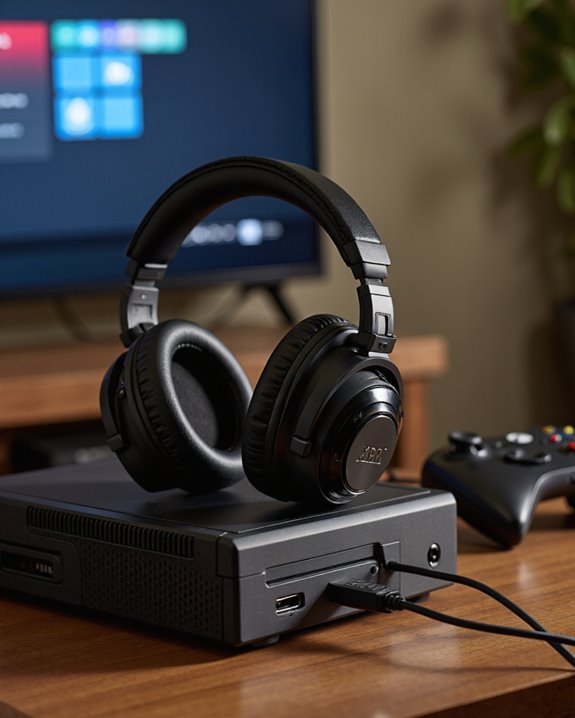
Older hardware is where things get a little more complicated, so let’s be honest about it. Getting a Turtle Beach headset built for Xbox 360 to work with a newer Xbox One controller isn’t always plug-and-play, mostly because the native connectors don’t match – you’ll need a 2.5mm to 3.5mm adapter cable to bridge the gap. Even once that adapter’s in place, don’t expect miracles: older headsets weren’t designed for the audio processing baked into modern consoles, so sound quality can come out a notch below what you’d get from a current-gen model. Microphone performance can also get inconsistent, especially when a modern wireless Turtle Beach headset gets paired up for backward-compatible Xbox 360 titles. On top of that, you’re dealing with the usual headaches of aging tech – extra cables to track down, firmware that may never get updated again, and support resources that thin out the older a product gets.
Accessories Worth Adding to Your Xbox Audio Setup
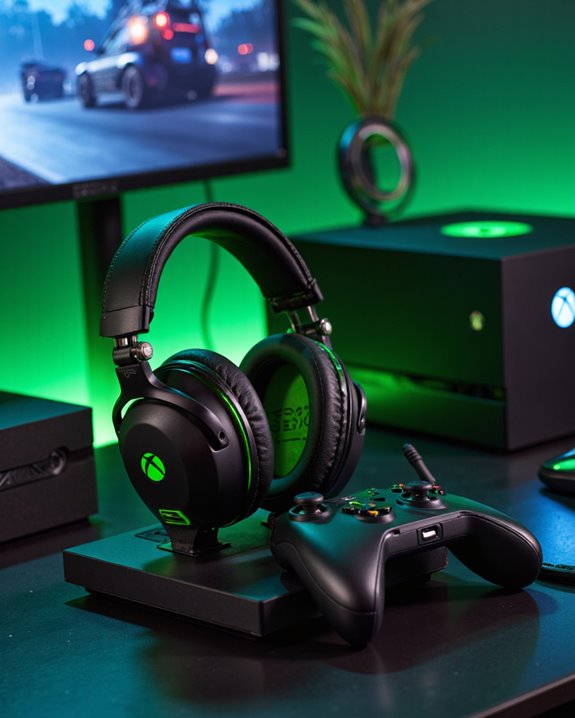
Picking a compatible headset is only step one – a few accessories can push the audio experience noticeably further. Turtle Beach’s own Headset Audio Controller Plus gives you granular control over game volume versus chat volume, lets you monitor your own mic, and stores custom sound presets, which is handy if you’re constantly tweaking the balance mid-match. On the comfort front, wireless models like the Stealth 600 and 700 series cut down on cable clutter and pair directly with Xbox consoles without any extra hardware. If you’re straddling console generations, accessory kits with 2.5mm to 3.5mm adapters solve most of the connectivity headaches across different Xbox controller versions. And since so many Turtle Beach headsets already include noise-cancelling microphones, that clarity carries over regardless of which accessories you add – the combination just makes for a more comfortable, more immersive setup whether you’re grinding ranked or gaming casually with friends.
How to Set Up Your Turtle Beach Headset on Xbox
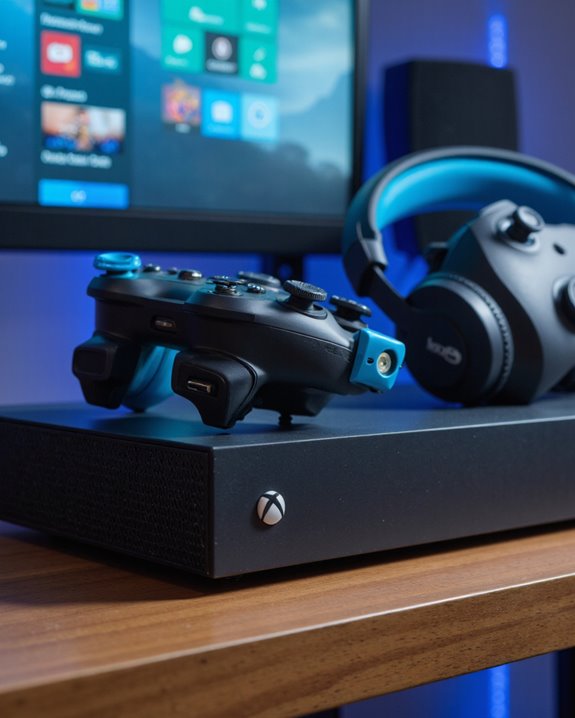
Setup genuinely takes a few minutes once you know the sequence. Start by powering on both the headset and the Xbox console and check that the LEDs light up on each. To pair, hold the Enroll button on the Xbox console and the Connect button on the headset at the same time – flashing LEDs on both devices confirm they’re talking to each other. Once paired, head into the Xbox system settings and make sure audio output is actually routed to the headset; skipping this step is the single most common reason people think their headset “isn’t working” when it’s really just a settings issue. Different Turtle Beach models have slightly different quick-start steps, so keep the model-specific guide handy rather than assuming every headset behaves the same. For better sound, dial in volume on both the headset and the console, and don’t skip firmware updates through the Turtle Beach Audio Hub app – it fixes more issues than people expect. Still stuck? A reset or a quick look at Turtle Beach’s support resources usually clears things up.
Frequently Asked Questions
Can Turtle Beach Headphones Be Used for Voice Chat on Xbox Live?
Yes – voice chat is one of the strongest parts of the Turtle Beach experience on Xbox Live. Mic performance is generally crisp and clear for party chat, though like any headset, you might need to poke around Xbox’s audio settings once in a while to get it dialed in right.
Are Turtle Beach Headsets Covered by a Warranty for Xbox Use?
They are. Turtle Beach headsets bought from authorized retailers typically come with a standard 1-year limited warranty, and Elite models get bumped up to 2 years – both cover manufacturing defects, so keep your receipt just in case.
Do Turtle Beach Headphones Support Xbox Spatial Audio Formats?
Many do, though it’s not universal across the whole lineup. Turtle Beach’s better drivers and noise cancellation already make audio feel more three-dimensional, and select models add explicit support for Xbox spatial audio formats – just double-check the specific model you’re eyeing before assuming it’s included.
How Do I Update Firmware on Turtle Beach Xbox Headsets?
You’ll need a PC or Mac with the Turtle Beach Audio Hub app installed – there’s no way to push firmware updates directly from the Xbox console itself. Running these updates regularly keeps compatibility solid and knocks out bugs before they become annoying.
Can I Use Turtle Beach Headphones While Charging on Xbox?
For most models, yes – you can keep gaming while the headset charges, similar to using your phone while it’s plugged in. Audio quality typically stays consistent during a charge, but it’s worth checking your specific model’s manual since a few older units handle this differently.