As an Amazon Associate, we earn from qualifying purchases. Some links on this site are affiliate links at no extra cost to you. Our recommendations are based on thorough research and editorial judgment.

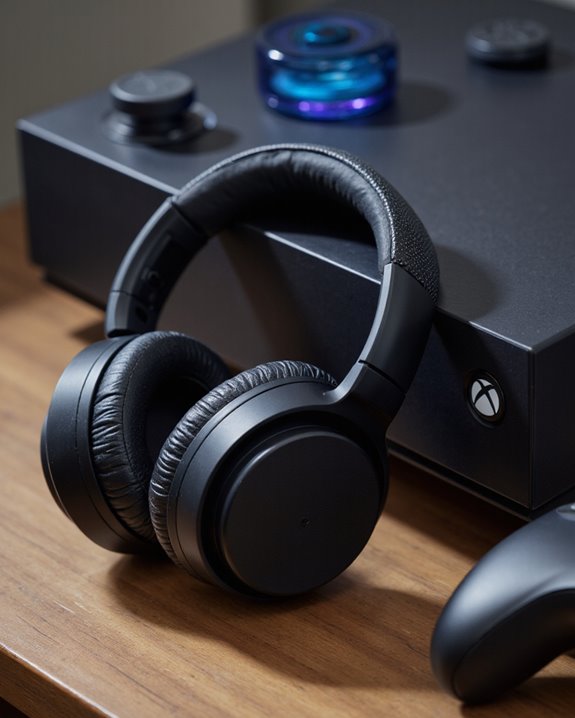
Can You Connect Sony Headphones to Xbox?

Yes, we can connect Sony headphones to Xbox consoles, but the method depends on the headphone type. Wired Sony headphones plug directly into the Xbox controller’s 3.5mm jack, offering low-latency, reliable audio. For wireless Sony headphones, Xbox lacks native Bluetooth support; we’d need a Bluetooth audio adapter (costing around $30–$35) or connect via a compatible TV’s Bluetooth settings, though some latency may occur. Optimizing Xbox audio and microphone settings is essential for the best experience. Explore more precise solutions below.
Key Takeaways
- Wired Sony headphones can connect directly to the Xbox controller’s 3.5mm audio jack for instant use.
- Xbox consoles do not support Bluetooth headphones natively, so wireless Sony headphones need a Bluetooth adapter.
- Bluetooth adapters for Xbox controllers enable wireless use of Sony headphones but may add minor audio latency.
- Connecting Sony Bluetooth headphones to your TV is possible, but may introduce noticeable audio delay during gaming.
- Adjusting Xbox audio settings is necessary to optimize sound quality and microphone use with Sony headphones.
Understanding Xbox Headphone Compatibility
You may be interested
When we’re considering how Sony headphones work with Xbox consoles, it’s important to first recognize the technical limitations and supported connection types. The Xbox doesn’t natively support Bluetooth audio for headphones, which means we can’t simply connect most wireless Sony headphones directly. Instead, connecting wireless models requires a Bluetooth adapter specifically designed for Xbox compatibility. For those of us using wired Sony headphones, the Xbox controller’s 3.5mm audio jack supports standard connections, allowing plug-and-play functionality without an additional adapter. However, different Sony headphone models may yield varying audio quality and microphone performance when paired with the console. To achieve the best sound, we should adjust the Xbox’s audio settings, ensuring the output correctly routes to our connected headphones and matches our preferences.
Wired Connection: Plugging Sony Headphones Into Your Xbox Controller
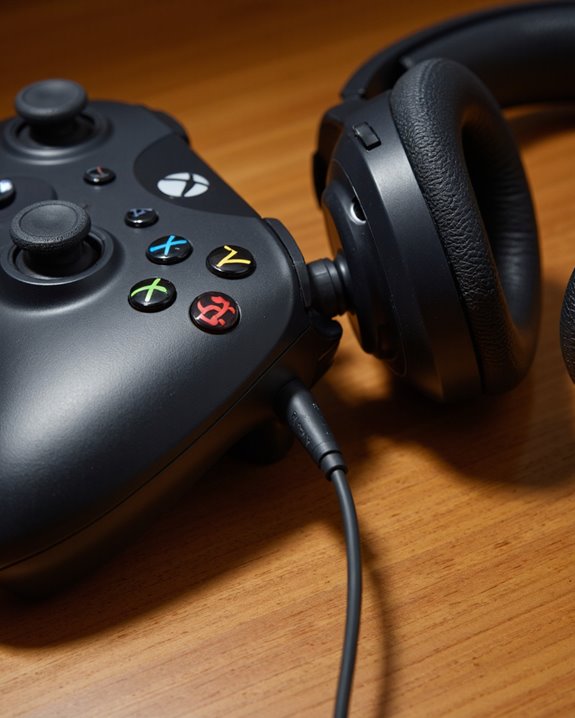
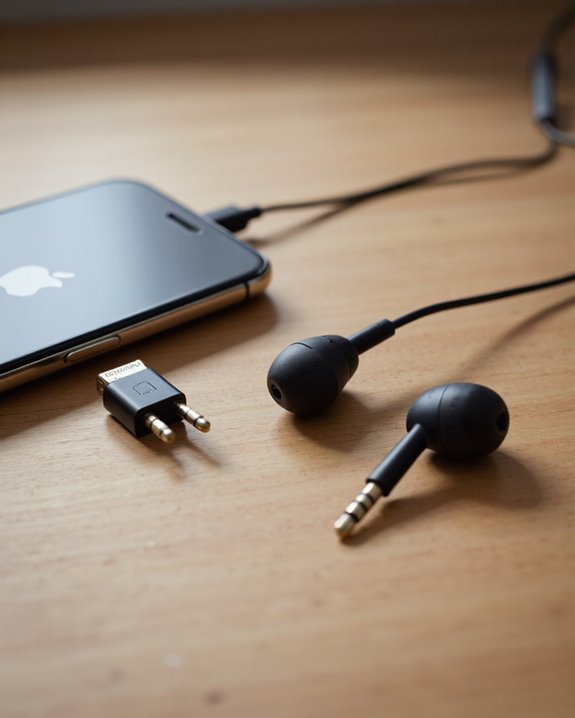
Anyone looking to connect their Sony headphones to an Xbox console will find that a wired setup offers the simplest solution. Most Xbox controllers include a 3.5mm audio jack, making it easy to establish a wired connection—just plug your Sony headphones directly into the port. There’s no need to connect Bluetooth headphones or purchase additional accessories for this method. Once connected, we should navigate to the Xbox audio settings and set the output to “Headset” to guarantee peak sound quality. Fine-tuning the volume on both the console and the headphones—especially if the headphones feature built-in controls—lets us achieve the desired audio balance for gameplay. This direct connection provides reliable audio performance, with minimal latency and straightforward compatibility across most Sony headphone models.
Using Bluetooth Adapters to Connect Sony Headphones
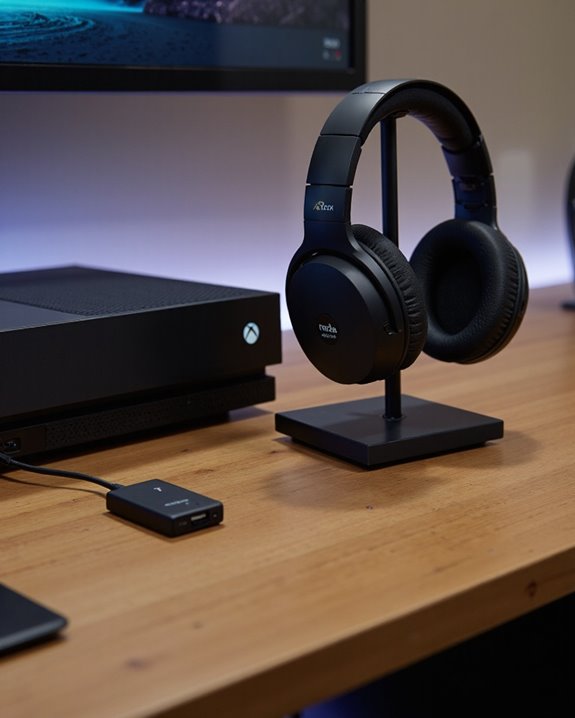
For those interested in a wireless setup, connecting Sony headphones to an Xbox console requires a specific approach, since Xbox systems don’t support standard Bluetooth audio out of the box. To bridge this gap, we’ll need a Bluetooth adapter designed for Xbox controllers. These adapters, typically priced between $30 and $35, plug directly into the 3.5mm audio jack on the controller. Once we connect the adapter, we power it on and set it to pairing mode—usually by double-pressing the power button until the LED blinks. Next, we place our Sony headphones in pairing mode. The adapter detects and pairs with the headphones, indicated by steady LEDs on both devices. This method lets us enjoy the audio experience of Bluetooth audio devices without investing in dedicated gaming headsets.
Connecting Sony Headphones via Your TV
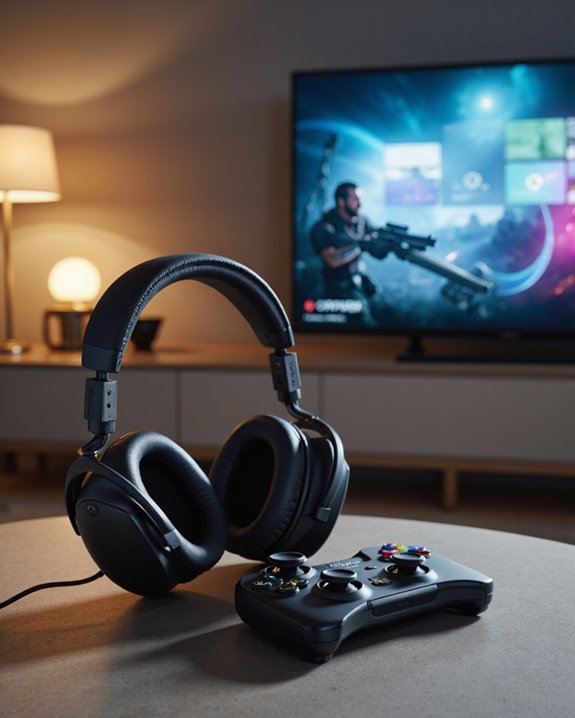
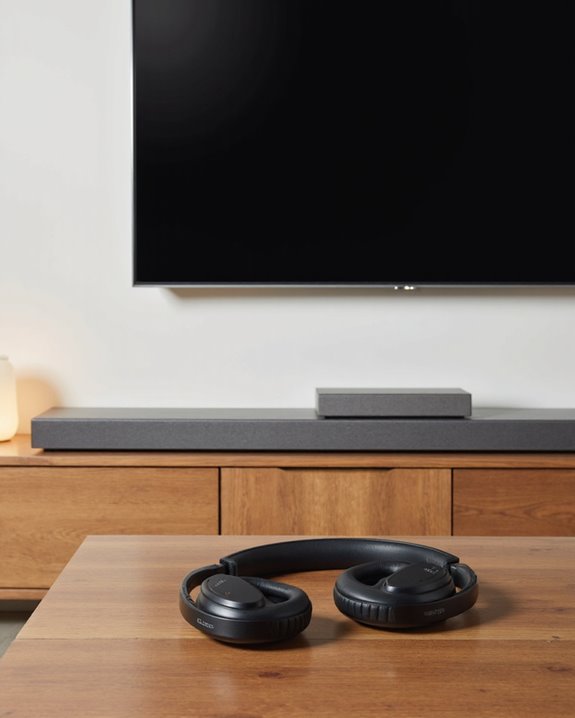
One practical method for connecting Sony headphones to an Xbox console involves leveraging your TV’s Bluetooth capabilities. First, verify the Xbox is connected to your TV using a high-quality HDMI cable and that the correct input source is selected. Next, put your Sony Bluetooth headphones into pairing mode—usually by holding the power button until the LED indicator flashes. Then, access your TV’s settings, navigate to the Bluetooth section, and select your headphones from the available devices. Once the connection is made, all gameplay sound from the Xbox will be routed through your Bluetooth headphones, offering private audio without disturbing others. However, we should note that connecting Sony headphones via your TV can introduce audio latency, especially noticeable during fast-paced gaming sessions.
Streaming Xbox Audio Through Windows and Mobile Apps
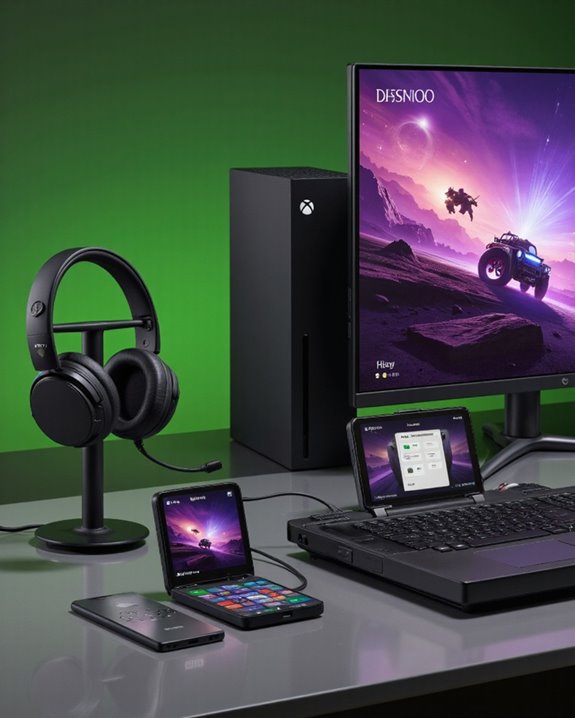
Although Xbox consoles don’t support Bluetooth headphones natively, we can still stream game audio to our Sony headphones by utilizing the Xbox app on Windows PCs, Macs, or mobile devices. On Windows, verify both your Xbox One and PC are on the same network, then launch the Xbox app to stream Xbox audio. Place your Bluetooth headphones in pairing mode and connect them to your PC for audio output. Mac users can use OneCast to achieve similar results. For mobile devices, the Xbox app on Android or iOS allows direct streaming, enabling Bluetooth headphone connections. While this method enhances flexibility and convenience, keep in mind that streaming Xbox audio quality may depend on network stability and the performance of your Bluetooth headphones.
Optimizing Audio and Microphone Settings on Xbox
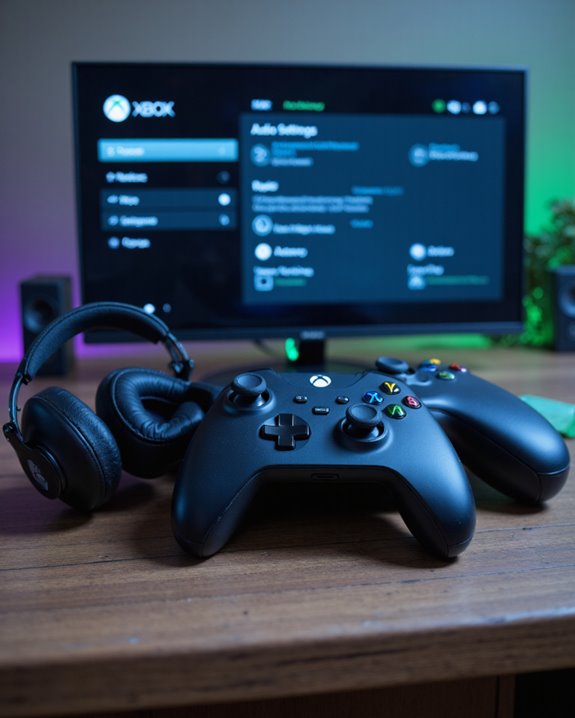
When we’re aiming to get the most out of our Sony headphones on Xbox, precise audio and microphone configuration is essential. Let’s start by optimizing audio settings—navigate to the Xbox audio menu and switch the output to “Headset” for superior sound on connected headphones. Adjust both the headphone and console volume levels to achieve a balanced listening environment. Many Sony wireless headphones include inline volume controls, allowing for on-the-fly adjustments without leaving gameplay. For microphone settings, confirm that the Xbox recognizes your mic by enabling the headset mic option in settings. To further enhance performance, consider using companion apps to create custom audio profiles. Tailoring these profiles can accentuate important in-game cues, offering a competitive advantage, especially in fast-paced multiplayer scenarios. Additionally, using noise-cancelling microphone features can significantly improve voice clarity during online gaming chats.
Common Issues and Troubleshooting Tips
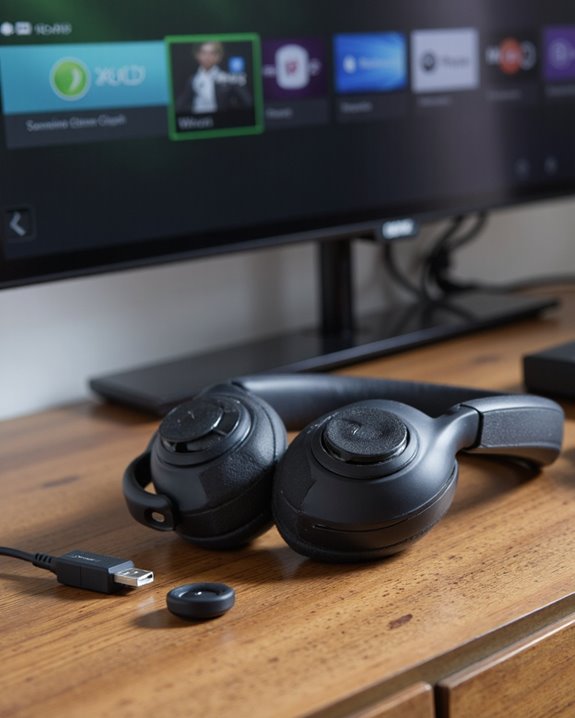
Even with careful setup, connecting Sony headphones to an Xbox console often presents technical challenges due to differing wireless protocols and hardware compatibility. Let’s break down the most common issues and troubleshooting tips. First, compatibility problems arise because Xbox consoles lack native Bluetooth support, requiring a Bluetooth adapter for standard Sony headphones. This workaround can introduce audio latency, potentially disrupting the experience in timing-sensitive games. Another frequent concern is microphone functionality—Bluetooth adapters may use their own microphones, leading to reduced clarity or unwanted background noise. For troubleshooting, always verify your Bluetooth adapter is fully charged and attempt pairing multiple times if initial connections fail. Finally, navigate to the Xbox audio settings to adjust output preferences and volume, resolving most basic sound quality issues for peak performance. Additionally, using a headset with AI-powered noise cancellation can significantly improve call clarity and reduce ambient distractions.
Frequently Asked Questions
Can I Connect My Sony Bluetooth Headphones to My Xbox?
Baffled by Bluetooth compatibility issues, we’ve been there too! Since Xbox audio settings don’t support standard Bluetooth, we’ll need headphone adapter options or explore wireless gaming solutions. Sony headphone features shine, but alternative connection methods are essential.
Can I Use My Sony Wh-1000xm4 With Xbox?
When we use our Sony WH-1000XM4 with Xbox, we face compatibility issues due to Bluetooth limitations. For the best audio quality and gaming experience, let’s check headphone settings and consider a wired connection or Xbox-compatible wireless connectivity.
Can You Use Sony WH-1000XM3 on Xbox?
When discussing Sony headphone compatibility with Xbox, we’ll need to address Bluetooth connection issues and Xbox audio settings. Since wireless lag concerns and headphone latency effects can impact gaming audio quality, using a wired connection is usually recommended.
Can You Use Sony WH-1000XM5 on Xbox?
When we look at Sony headphones compatibility, explore wireless connection methods, and consider headphone charging options, we’ll need a Bluetooth adapter. Let’s remember to tweak Xbox audio settings and watch for Bluetooth latency issues affecting gaming audio quality.