As an Amazon Associate, we earn from qualifying purchases. Some links on this site are affiliate links at no extra cost to you. Our recommendations are based on thorough research and editorial judgment.

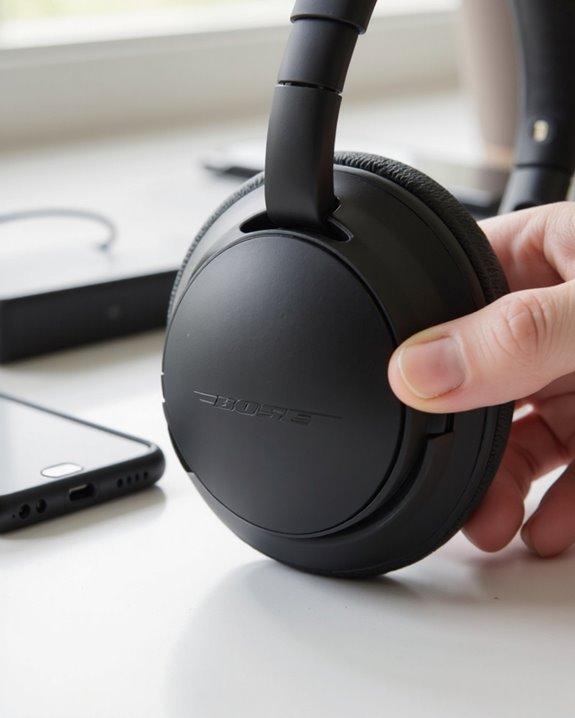
How to Reset Bose 700 Headphones: A Step-by-Step Guide

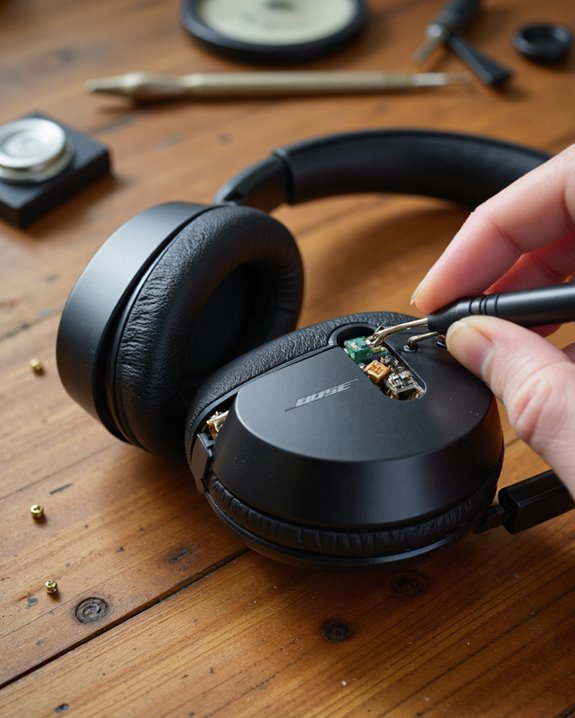
Bose 700 acting up? Before you assume something’s broken, try the cheapest fix there is: a reset. Here’s how to reset Bose 700 headphones in under a minute – power them off, make sure the battery’s above 20%, then press and hold the power/Bluetooth button for roughly 10 seconds until the indicator blinks and you hear the reset confirmation chime. That single move wipes the saved pairing list, so you’ll be re-pairing every device afterward, but it also clears out the gremlins behind most connectivity dropouts, crackly audio, and random reboots – especially the kind that show up right after a firmware update. Stick with me and I’ll walk through prepping for the reset, reconnecting your gear, scrubbing stubborn Bluetooth cache issues, and what to do if a plain reset doesn’t cut it.
Key Takeaways
- Shut the Bose 700 down completely before you touch anything else – a mid-process reset rarely goes well.
- Hold the power/Bluetooth button for about 10 seconds to kick off the reset.
- Watch for the blinking Bluetooth light and listen for the voice prompt – that’s your confirmation it worked.
- Every paired device gets wiped in the process, so you’re re-pairing from scratch afterward.
- Once it’s done, play something or make a quick call to confirm everything’s actually working.
Why You’d Need to Reset Your Bose 700 Headphones in the First Place
You may be interested
If your Bose 700 keeps dropping the connection or rebooting on its own – and this seems to happen more often right after a firmware update – that’s usually your cue that a reset is overdue. A reset clears out locally stored settings, including that paired device list, and in doing so it flushes whatever leftover conflict was causing the chaos. Practically speaking, it means holding the power/Bluetooth button for about 10 seconds until the LED starts blinking, which tells you the reset has begun. I’ve found it’s the single fastest way to get stable connectivity back without digging through settings menus. Treat it as routine maintenance rather than a last resort – a quick reset every so often keeps playback and calls sounding the way they’re supposed to.
Problems a Reset Actually Fixes
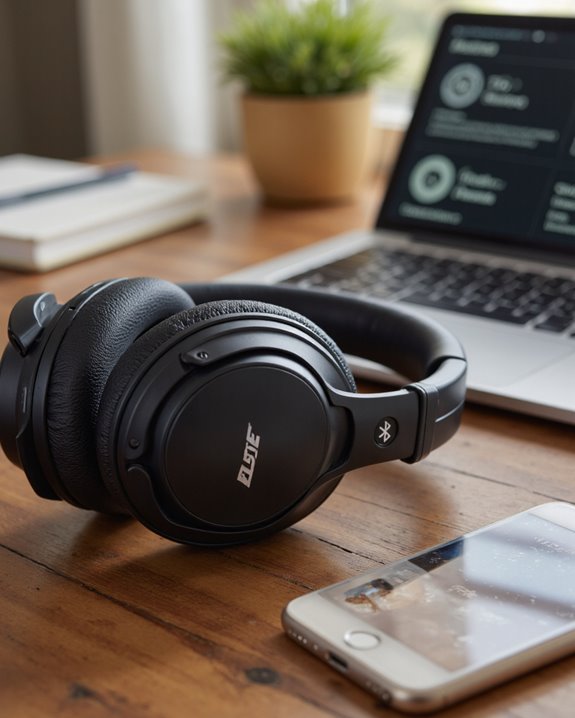
Bose built the 700 to be reliable, but no wireless headset is immune to glitches, and a reset happens to fix a surprising range of them. In my experience it’s the go-to remedy for frequent disconnections and general flakiness across multiple paired devices. Connectivity problems that crop up right after a firmware update? A reset usually clears those out too. If audio quality has taken a hit – think random reboots or calls that sound choppy – resetting often brings things back to normal. It also wipes the paired device list outright, which eliminates the kind of conflicts that build up after connecting to one too many phones, laptops, and tablets over time. When you’ve already tried the obvious stuff and nothing’s sticking, a reset is usually the step that actually gets your Bose 700 headphones back to spec.
Getting Ready Before You Reset
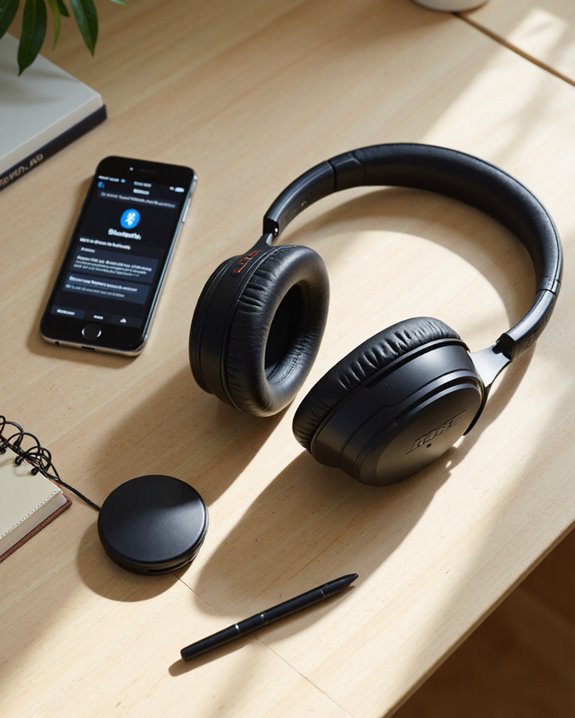
A little prep goes a long way here. First, make sure the headphones are completely powered off – not just idle, actually off – since that avoids firmware hiccups mid-reset. Next, locate the power/Bluetooth button; you’ll need to hold it down, so know exactly where your fingers are going before you start the clock. Check the battery too – ideally above 20% – because a reset that gets interrupted by a dead battery is worse than no reset at all. It also helps to know what the LED indicators actually look like, since they’re your only feedback during the process. Finally, keep whichever device you plan to pair with close by so you can jump straight into reconnecting once the reset finishes. Do this and the actual reset takes about ten seconds and goes off without a hitch.
How to Reset Bose 700 Headphones, Step by Step
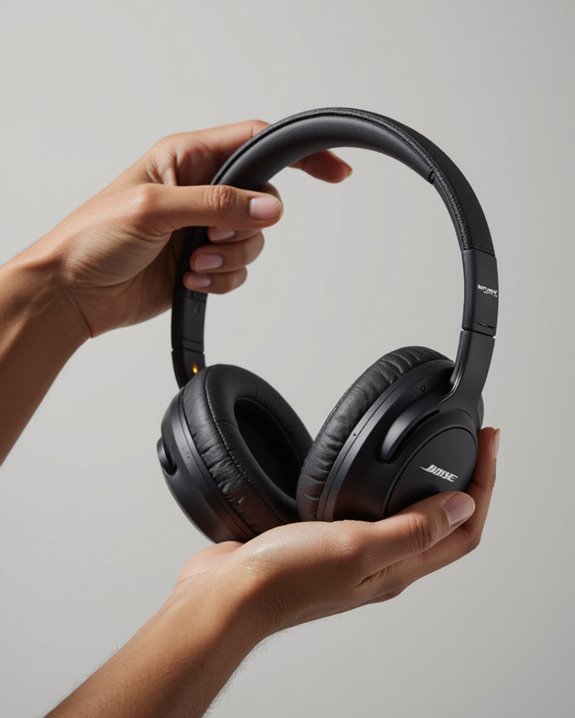
The actual process is short, but getting each step right matters if you want it to actually work. Start by powering the headphones off completely – skipping this can cause problems partway through. Then press and hold the power/Bluetooth button for about 10 seconds. You’ll see the Bluetooth indicator light start blinking, and a voice prompt will confirm the reset is happening. This wipes every saved paired device connection, no exceptions. Worth repeating: once it’s done, you’ll need to re-pair each device you plan to use, one at a time. To confirm it worked, play a song or make a quick call. That’s it – your Bose 700 is fully reset.
What Actually Happens During the Reset
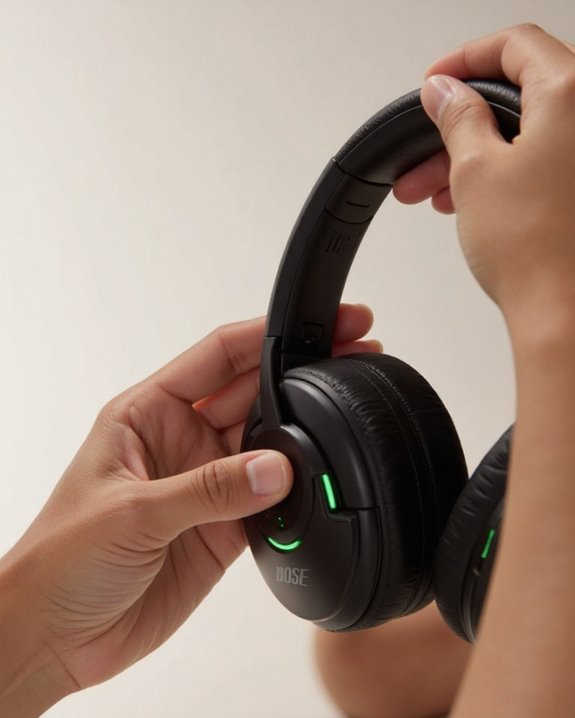
Once the reset starts, a few cues let you know it’s progressing rather than stalling. With the headphones fully powered off, hold the power/Bluetooth button for around 10 seconds. Somewhere in that window, the Bluetooth LED begins blinking – that’s the clearest signal the reset is actually taking effect, not just your imagination. This visual cue matters because it’s the only real-time confirmation you get that the command registered. Near the end, you’ll likely hear a voice prompt or a short chime marking successful completion. Once you hear that, the internal settings are wiped clean and the headphones are sitting ready for whatever comes next – pairing, setup, or further troubleshooting.
Reconnecting Your Devices After the Reset
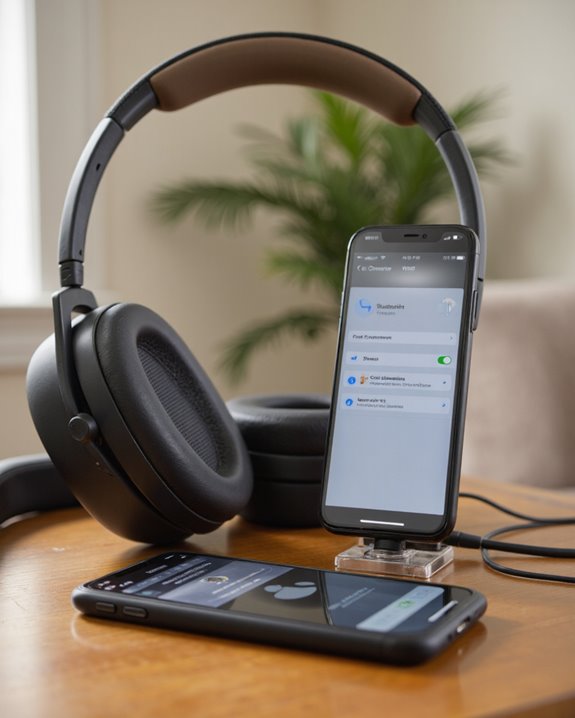
So how do you actually get connected again after wiping everything? Start by powering the headphones on. To drop into pairing mode, hold the power/Bluetooth button until the indicator light blinks blue – that’s your sign the headphones are broadcasting and ready. On whatever device you’re using – phone, tablet, laptop – open Bluetooth settings and double-check Bluetooth is switched on. From the list of available devices, tap “Bose 700” to start the connection. You might get a prompt or two on-screen; just follow along and confirm the device is recognized properly. Once it connects, test it – play something or take a call – to make sure the link is solid. Do this right and your headphones will slot back in like nothing happened.
Clearing Old Bluetooth Pairings From Your Devices
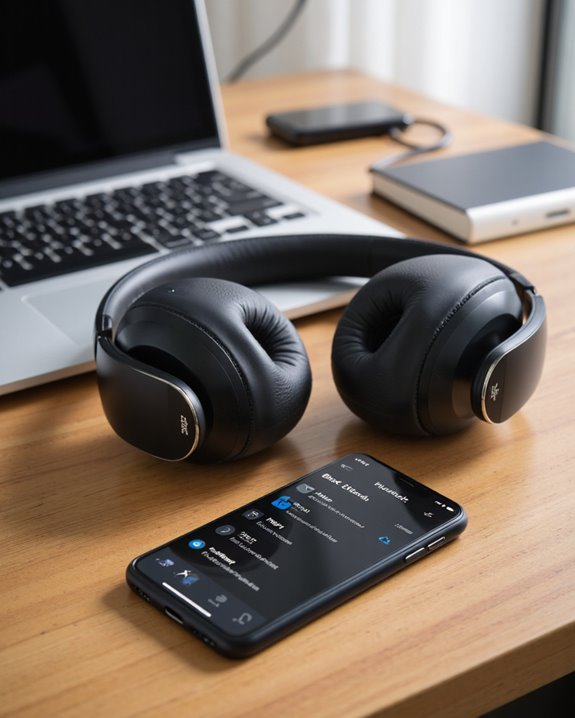
Before a clean Bluetooth connection can happen, it’s worth clearing out any leftover device associations that might be quietly interfering. Head into the Bluetooth settings on each device you use – phone, PC, whatever – and find the Bose 700 in the paired devices list. Remove it. Keep an eye out for duplicate entries too, especially anything tagged “LE,” and delete those as well since they’re notorious for causing pairing confusion. Depending on the platform, this option might be labeled “Forget,” “Unpair,” or simply “Clear.” Once every trace is gone, restart the device – it refreshes the Bluetooth cache and prevents old data from lingering. Power the headphones back on afterward, and that Bluetooth light will tell you they’re ready for a genuinely fresh pairing.
When Connectivity Problems Won’t Quit
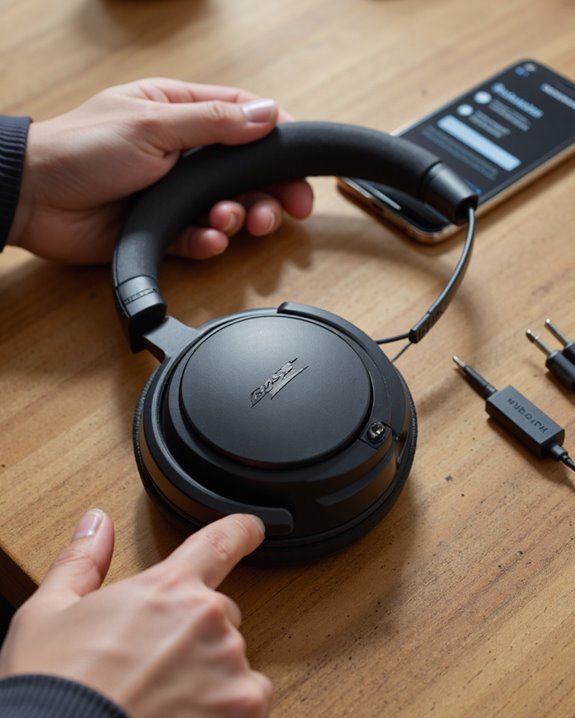
Even a well-engineered headset like the Bose 700 will occasionally throw a fit. If it does, start by powering the headphones down completely. From there, run through the reset – hold the power/Bluetooth button for about 10 seconds and wait for the Bluetooth indicator to blink. That alone resolves a good chunk of intermittent disconnections. Next, reconnect and pay attention to whether the link actually holds steady this time. Still glitchy? Try clearing your device’s Bluetooth history – delete duplicate entries, particularly ones labeled “LE,” since those tend to trigger pairing conflicts. A smaller number of users have also reported better stability after rolling back to an older firmware version, especially when the trouble started right after an update – though that’s not something Bose officially supports, and you’ll be trading away any newer features to do it.
If a Reset Alone Doesn’t Solve It
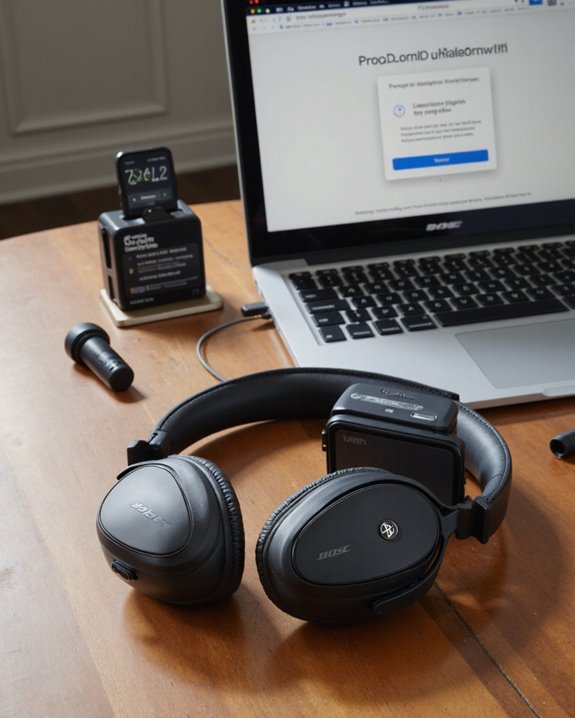
Sometimes a standard reset just doesn’t touch whatever’s causing the persistent connectivity issues. Before you write the headphones off, a few more things are worth trying. Swap in a different wall charger and see if power inconsistencies were the culprit. Some owners have had luck reverting to an earlier firmware build for extra stability, though again, that’s an unofficial workaround, not a sanctioned fix. It’s also worth clearing your devices’ Bluetooth histories entirely – unpair every Bose entry and delete duplicates while you’re at it. Testing the headphones on a completely different device helps narrow down whether the issue is the headphones themselves or a quirk with your original device. Clear away any obvious sources of Bluetooth interference too. If you’ve tried all of that and you’re still stuck, it’s time to get Bose customer support involved.
How the Bose 700 Stacks Up Against the Competition
With troubleshooting out of the way, it’s worth zooming out to see how the Bose 700 actually compares against the rest of the field.
Noise Cancellation and Audio Quality****
The Bose 700 still holds its own as one of the best noise-cancelling headsets around, and in a lot of scenarios it edges out the Sony WH-1000XM4. That said, its sound signature leans balanced rather than bold – if you want richer, deeper bass, the Sennheiser Momentum 3 will probably win you over.
Design and Value
The 700’s fit is sleek and comfortable, though anyone chasing a more luxe look might prefer the Apple AirPods Max instead. If budget’s the priority, the Jabra Elite 85h or Anker Soundcore Life Q30 get you most of the same functionality for noticeably less money.
Smart Features
Bose’s companion app makes customization easy, but rivals like the Microsoft Surface Headphones 2 pull ahead on battery life and device connectivity. And if immersive audio is what you’re after, the Beats Studio Pro brings personalized spatial audio with dynamic head tracking to the table.
Frequently Asked Questions
How Do You Reset Bose 700 Headphones to Factory Settings?
Power them off, hold the power/Bluetooth button for 10 seconds, and wait for the blinking light and voice confirmation. From there, re-pair your devices and run a quick playback test to make sure the Bluetooth connection is solid again.
Can You Reset the Bose 700 Without a Remote?
Yes – there’s no remote involved at all. Just hold the power/Bluetooth button on the headphones themselves for about 10 seconds until the Bluetooth light blinks. That’s enough to clear up most connectivity issues and get normal function back.
How Do I Reset Bose Headphones to Factory Settings in General?
Power off, then hold the power/Bluetooth button for 10 seconds until you get the confirmation cue. After that, re-pair your device and test the audio to confirm everything’s running the way it should.
How Do You Factory Reset Bose Earphones?
Same basic idea applies across most Bose models: power off, hold the power/Bluetooth button for 10 seconds until you hear the reset prompt, then re-pair and test to confirm they’re working properly again.