As an Amazon Associate, we earn from qualifying purchases. Some links on this site are affiliate links at no extra cost to you. Our recommendations are based on thorough research and editorial judgment.

How to Connect Shokz Headphones to Your Computer

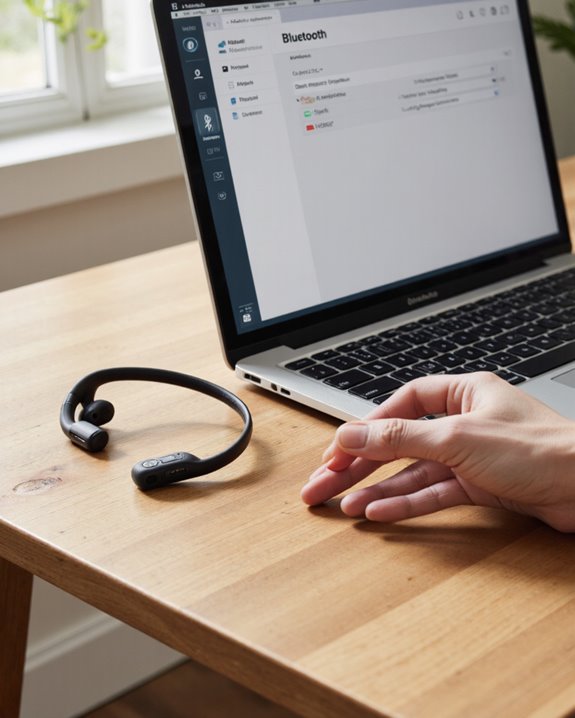
To connect Shokz headphones to your computer, we first ascertain both devices support Bluetooth 3.1 or higher—most recent PCs feature Bluetooth 4.0+. After fully charging the headphones, we enter pairing mode by holding the volume+ button until the LED flashes red and blue. On Windows, navigate to Settings > Devices > Bluetooth, or use System Preferences > Bluetooth on a Mac, then select your Shokz headphones to pair. Setting them as the default audio output optimizes sound—further steps address common issues.
Key Takeaways
- Ensure your Shokz headphones are fully charged and enter pairing mode by holding the volume+ button until the LED flashes red and blue.
- Activate Bluetooth on your computer and verify it supports Bluetooth version 3.1 or higher.
- On your computer, navigate to Bluetooth settings and select “Add Bluetooth or other device” to search for available devices.
- Choose your Shokz headphones from the list and confirm the connection when prompted.
- Set Shokz headphones as the default audio output device in your computer’s sound settings for optimal performance.
You may be interested
[content-egg module=Amazon template=grid]
Checking Compatibility Between Shokz Headphones and Your Computer
Before we can connect our Shokz headphones to a computer, it’s crucial to confirm that both devices are technically compatible. Shokz headphones require a computer with Bluetooth 3.1 or higher to guarantee a seamless listening experience. Most modern computers feature Bluetooth 4.0 or 5.2, which supports stable connections and improved audio quality. We should verify our computer’s Bluetooth version, as older systems may not meet the headphones’ requirements. Additionally, checking for software updates on both the computer and the Shokz headphones can enhance connectivity and performance. If our computer lacks built-in Bluetooth, a compatible Bluetooth transmitter is necessary. By confirming technical compatibility first, we minimize potential connectivity issues and set the stage for a superior listening experience.
Preparing Your Shokz Headphones for Pairing
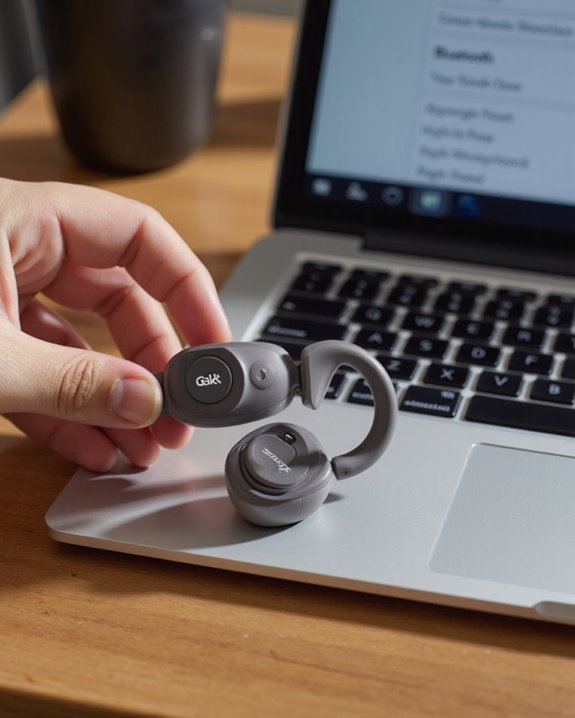
One essential step in connecting your Shokz headphones to your computer is properly preparing the headphones for pairing. Before we start, let’s confirm they’re fully charged—charging your Shokz headphones guarantees uninterrupted setup and performance. Next, power them off to initiate pairing mode correctly. For hygiene and peak function, cleaning Shokz earbuds with a soft, lint-free cloth is advisable, especially if they’ve been used frequently. It’s also wise to take into account updating firmware regularly, as this can resolve compatibility issues and enhance Bluetooth stability. To enter pairing mode, press and hold the volume+ button for 5–7 seconds until you hear “pairing” and see the LED indicator flashing red and blue. At this point, your headphones are ready to be discovered by your computer.
Enabling Bluetooth on Your Computer
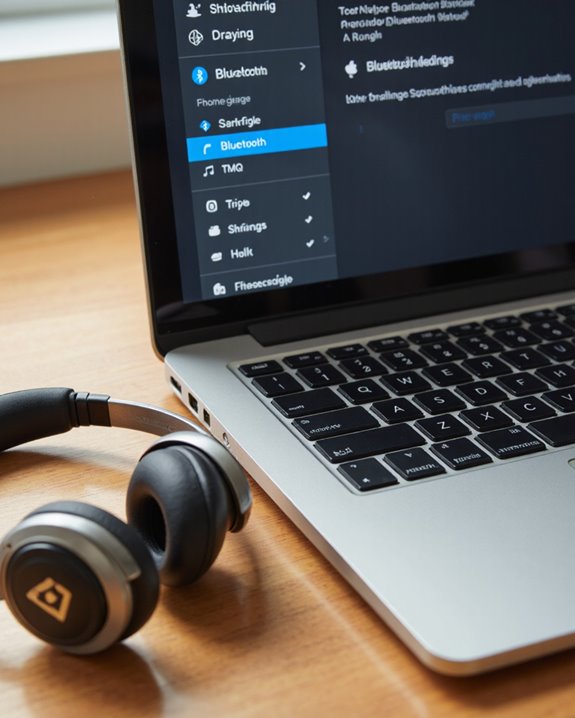
With your Shokz headphones now in pairing mode, let’s focus on preparing your computer to establish a Bluetooth connection. First, let’s start with a Bluetooth settings overview. On Windows, open the Settings menu, select “Devices,” then toggle Bluetooth to “On.” For Mac users, go to the Apple menu, choose “System Preferences,” and select “Bluetooth” to activate it if needed. Verify your system supports Bluetooth version 3.1 or higher, as this guarantees compatibility with Shokz headphones.
If you don’t see Bluetooth options, Device manager access is essential—check for disabled adapters or missing drivers. Updating your drivers or operating system may resolve this. For Bluetooth troubleshooting tips, confirm hardware is enabled and software updates are current. Once Bluetooth is active, your computer will be ready to scan for devices.
Pairing Shokz Headphones With Windows PCS
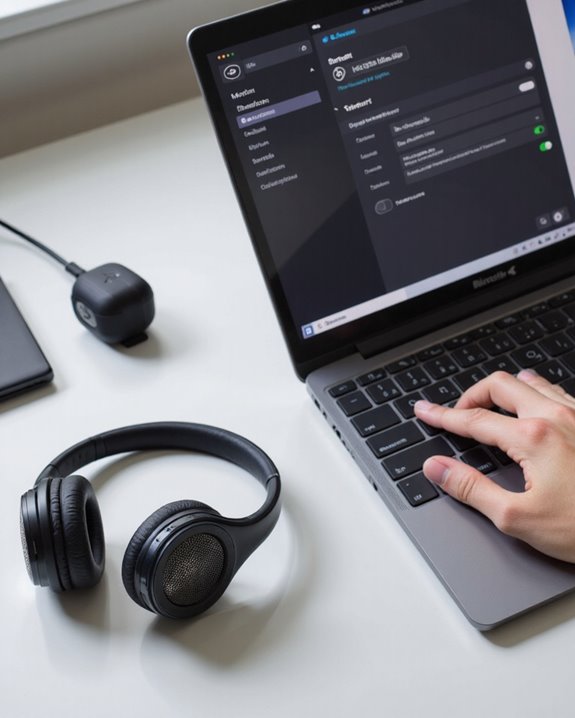
Although connecting Shokz headphones to a Windows PC is a straightforward process, following each step precisely guarantees a seamless pairing experience. First, let’s confirm the headphones are off—then we’ll press and hold the volume+ button for 5–7 seconds until the LED flashes red and blue, signaling pairing mode. On your PC, navigate to Settings > Devices > Bluetooth & other devices, and click “Add Bluetooth or other device.” Choose “Bluetooth,” then select your Shokz headphones from the list. Wait for the voice prompt confirming a successful connection, and verify the LED flashes blue. Among Shokz headphone features, stable Bluetooth connectivity stands out, and following these bluetooth pairing tips helps maintain ideal performance. For audio quality comparison, Shokz typically deliver clear, balanced sound for calls and music.
Connecting Shokz Headphones to a Mac
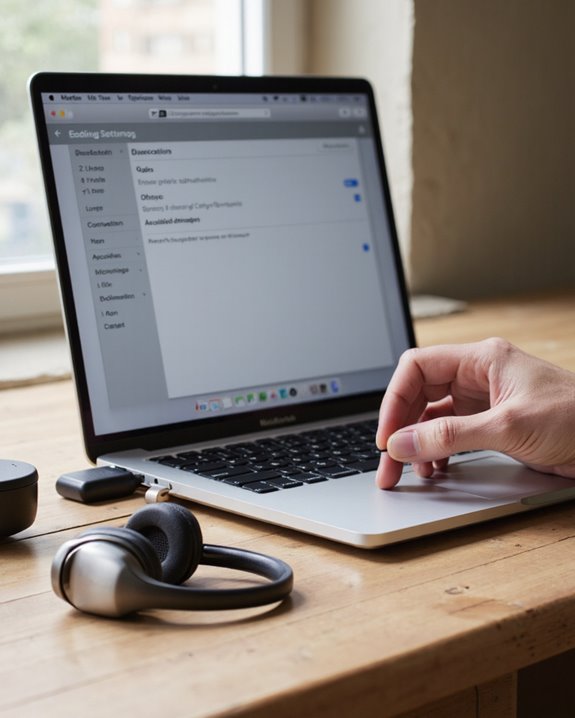
Before we can enjoy wireless audio on a Mac, it’s crucial to initiate pairing mode on our Shokz headphones by making sure they’re powered off and then holding the volume+ button until the LED flashes red and blue while the voice prompt announces “pairing.” Next, we’ll navigate to the Mac’s Bluetooth interface by selecting the Apple menu, choosing “System Preferences,” and clicking on “Bluetooth.” Within this panel, our Shokz headphones should appear among available devices; clicking “Connect” will prompt the headphones to confirm pairing with a “Connected” voice prompt and a blue LED flash.
Shokz headphone features, such as bone conduction technology, guarantee comfort and situational awareness. For best Bluetooth audio quality, keep the headphones’ firmware updated. Clean charging contacts regularly—this simple headphone maintenance tip helps guarantee a consistent connection.
Setting Shokz Headphones as the Default Audio Output
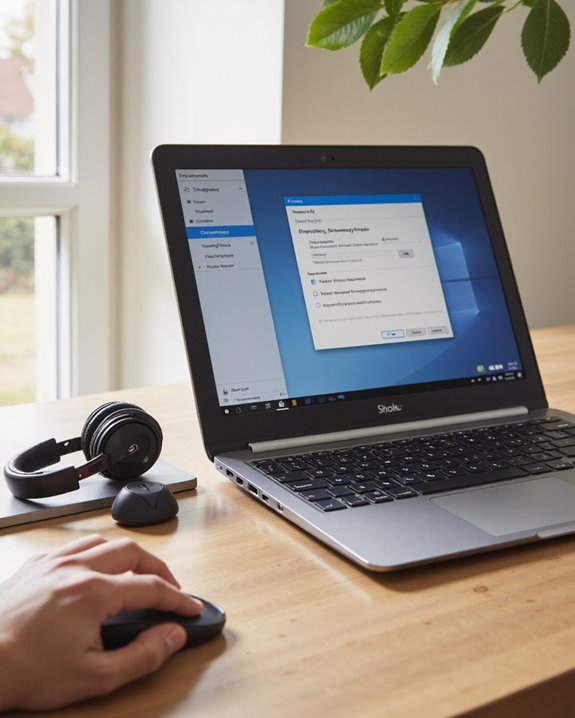
One vital step in optimizing our listening experience is setting Shokz headphones as the default audio output on our computer. This guarantees that all system sounds and media playback are routed directly to the headphones, enhancing both audio quality and overall user experience. On Windows, we’ll right-click the speaker icon in the taskbar, select “Playback devices,” choose our Shokz headphones, and click “Set Default.” For Mac users, we navigate to “System Preferences,” then “Sound,” and select our Shokz headphones under the “Output” tab. Before making these adjustments, it’s essential that our headphones are powered on and connected via Bluetooth. If we encounter issues, disconnecting and reconnecting the headphones is a helpful troubleshooting tip. Let’s test playback to confirm successful setup.
Troubleshooting Common Connection Issues
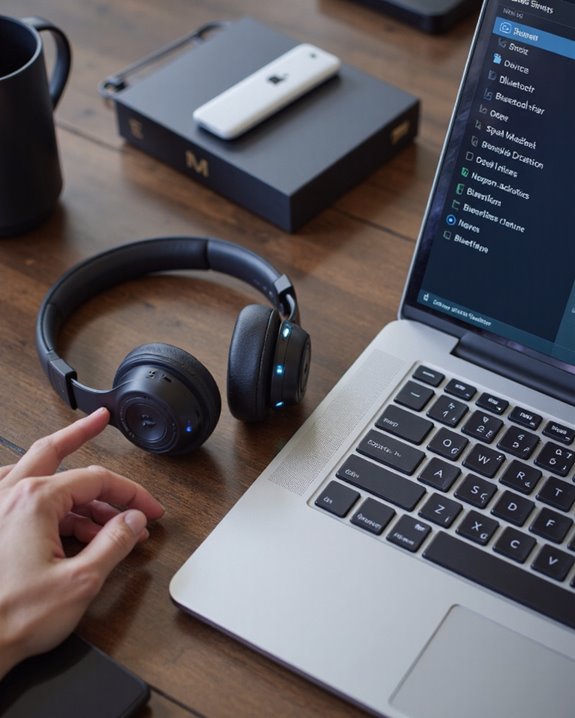
After configuring Shokz headphones as our default audio output, we might occasionally encounter obstacles that prevent a seamless connection between the headphones and our computer. First, verify the headphones are in pairing mode—hold the volume+ button until the LED flashes red and blue, confirming with the “pairing” prompt. Next, check the computer’s Bluetooth is enabled and consider any pending software or firmware updates, as these often improve compatibility and address known bugs. If connection issues persist, remove or “forget” the headphones from the Bluetooth settings, then re-pair them. For best sound quality tips, maintain close proximity between devices and minimize physical obstructions. Battery maintenance also plays a role; keep both devices charged. Restarting the headphones and computer can resolve temporary glitches efficiently.
[content-egg module=Amazon template=grid]
Frequently Asked Questions
How Do I Connect My Headphones to My Computer?
Ever wondered how we connect our headphones to a computer for the best audio quality? Let’s make sure Bluetooth settings are enabled, check headphone compatibility, and pair them—now we’ll enjoy clear, wireless sound together!
Why Won’t My Shokz Headphones Connect?
If our Shokz headphones won’t connect, let’s try Bluetooth troubleshooting tips like checking device compatibility issues and updating drivers. If that doesn’t help, we can use headphone resetting methods to clear glitches and attempt pairing again.
How to Connect Shokz Open Fit to Laptop?
Let’s imagine our laptop and Shokz commencing a dance—first, we awaken the Shokz pairing process, guide them in sync through the laptop audio settings, and, if they stumble, use Bluetooth troubleshooting tips to restore harmony.
Does Aftershokz Work With PC?
Yes, we can use AfterShokz headphones with a PC for wireless audio. They provide solid battery life and sound quality, though connection stability may depend on your computer’s Bluetooth version. If you’re still deciding which model to buy, check out our guide to the best Shokz headphones for our top picks. If you’d rather compare options beyond bone conduction, our roundup of the best wireless headphones overall is a great place to start. Let’s enjoy hands-free listening together!