As an Amazon Associate, we earn from qualifying purchases. Some links on this site are affiliate links at no extra cost to you. Our recommendations are based on thorough research and editorial judgment.

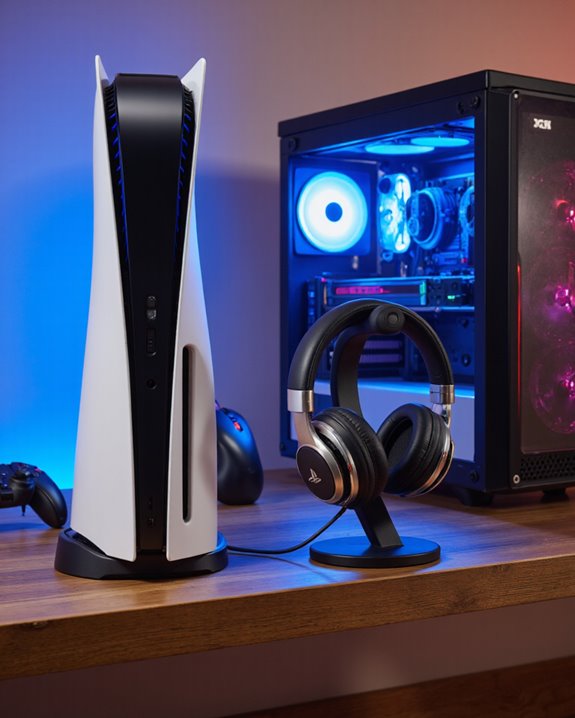
Can I Use PS5 Headphones on PC?

Yes, we can use PS5 headphones like the PULSE 3D or PULSE Elite on our PC via either the included USB transceiver for low-latency wireless audio, Bluetooth for added convenience (with some latency tradeoff), or a 3.5mm TRRS cable for direct wired use. Audio and microphone support depend on the connection type—USB or TRRS cables enable both, while standard stereo cables lose mic function. Setting proper PC audio input/output devices is essential, and further nuances await exploration.
Key Takeaways
- PS5 headphones like PULSE 3D and PULSE Elite are compatible with PCs through USB transceiver, Bluetooth, or a 3.5mm wired connection.
- Using the USB transceiver on PC provides low latency and high-quality audio, with full microphone support.
- Bluetooth pairing is possible on most PCs, but may result in higher audio latency compared to USB.
- A 3.5mm audio cable enables wired connection, but microphone functionality requires a four-conductor (TRRS) cable.
- Properly set the headphones as the default audio output and input device in your PC’s sound settings for best performance.
Compatibility of PS5 Headphones With PC
You may be interested
Although PS5 headphones are designed primarily for Sony’s gaming console, we’ll find that models like the PULSE 3D Wireless Headset and PULSE Elite Wireless Headset offer robust compatibility with PCs. Both headsets connect wirelessly to a computer using their respective USB transceiver—either the standard adapter for PULSE 3D or the PlayStation Link™ adapter for the PULSE Elite Wireless Headset. This approach guarantees high-quality audio transmission and low latency. Additionally, the headsets can simultaneously support Bluetooth devices without compromising the performance of the PlayStation Link connection. To guarantee peak operation, we need to designate the PS5 headset as the default audio output device in our PC’s sound settings. This flexibility makes these headsets an attractive choice for those who game across platforms. Many gaming headsets, such as the BENGOO Wireless Gaming Headset, also provide universal compatibility with PS4, PS5, PC, and Switch via various connection types, adding to their versatility.
Setting Up Wireless Connections for PS5 Headphones on PC
Establishing a wireless connection between PS5 headphones and a PC is a straightforward process that hinges on utilizing the dedicated USB transceiver provided with your headset. To begin, we’ll insert the USB transceiver into an available USB Type-A port on the computer. Next, let’s power on the headset—when the status indicator blinks, it’s actively searching for a connection. Once the headset is connected successfully, the indicator will turn solid blue, confirming the pairing.
For peak performance, we’ll need to access our computer’s sound settings and select the headset as the primary audio output device. This guarantees both game audio and voice chat are routed properly. If connection issues arise, simply press and hold the connect button on the USB transceiver for about five seconds to reinitiate pairing mode.
Connecting PS5 Headphones Using a USB Transceiver
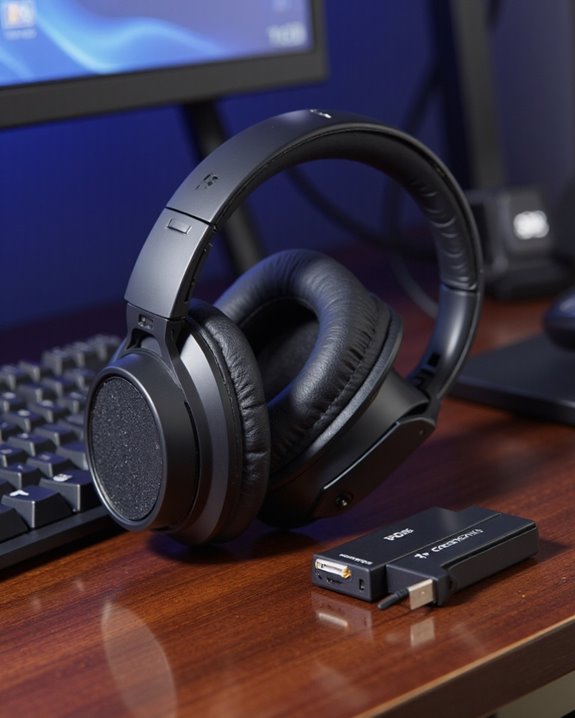
A reliable connection between PS5 headphones and a PC begins with the dedicated USB transceiver included with the headset. First, insert the USB transceiver into a USB Type-A port on your computer and set its switch to “PC” mode. Once the headset is powered on, it should automatically pair with the transceiver using a 2.4 GHz wireless connection. You’ll hear a notification sound when the headset is connected. To guarantee the best audio experience, navigate to your computer’s sound settings and select the headset as the default audio output device. If pairing doesn’t happen automatically, press and hold the connect button on the USB transceiver for about five seconds to initiate manual pairing. This process offers a stable, low-latency connection ideal for gaming and multimedia use.
Using Bluetooth to Pair PS5 Headphones With PC
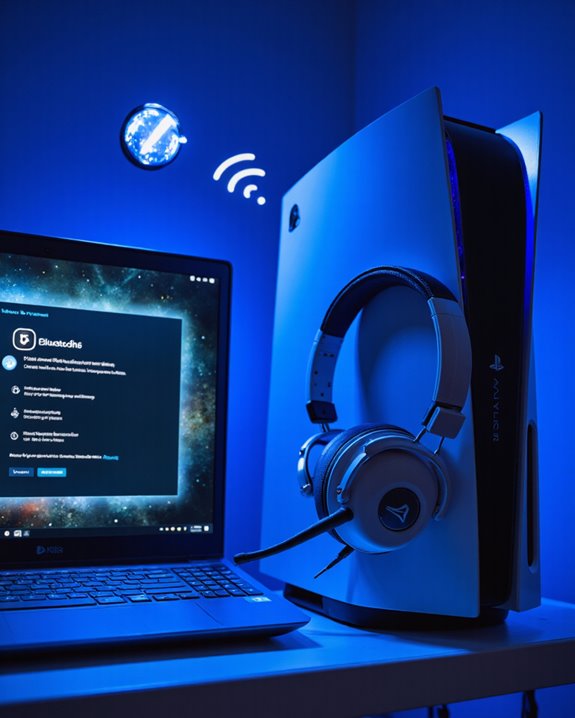
For users seeking a cable-free setup, pairing PS5 headphones with a PC over Bluetooth is a practical alternative to using the USB transceiver. To initiate pairing, first verify Bluetooth is enabled in your PC’s settings. Next, power on the PS5 headphones and press the PS Link button until the status indicator blinks blue—this signals pairing mode. On your PC, locate the headphones in the Bluetooth device list and select them to pair; the indicator will turn solid blue once the connection is established. When connected via Bluetooth, audio quality is typically clear, but users may experience increased latency compared to wired options, potentially impacting real-time audio feedback. The headphones can pair with multiple Bluetooth devices, but only one audio stream is supported at a time. Most modern headphones support Bluetooth 5.0 or higher, which enhances connection stability and range.
Selecting Audio Input and Output Devices on PC
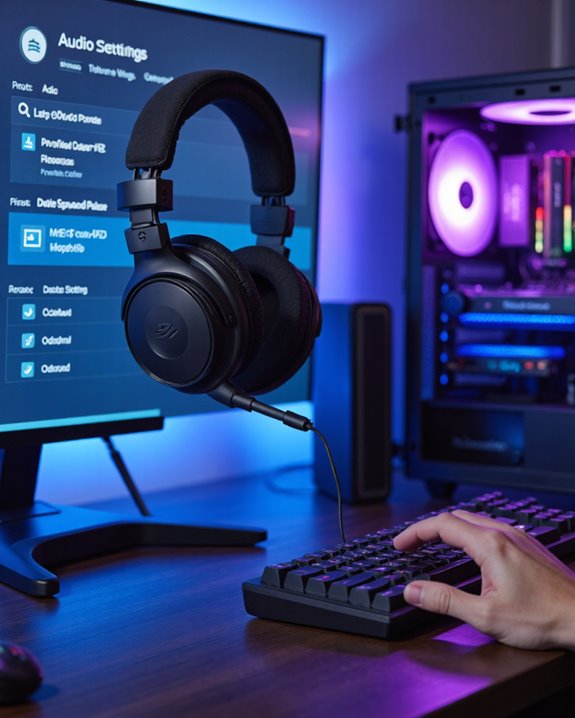
How do we guarantee our PS5 headphones deliver the best audio experience on PC? The first step is connecting them via the USB transceiver, ensuring a stable digital link. Once connected, we’ll need to select the correct audio output device in the Windows sound settings—typically labeled [INZONE H9 / INZONE H7 – GAME] for game audio. For chat or voice, choose [INZONE H9 / INZONE H7 – CHAT]. This separation allows us to direct game and chat audio independently, optimizing clarity and immersion.
We should also verify the headset microphone is recognized by reviewing the audio input settings in the system’s sound control panel. If pairing doesn’t occur automatically, holding the transceiver’s connect button for five seconds usually resolves it, ensuring seamless integration.
Optimizing Microphone Performance and Voice Input
While optimizing microphone performance on a PC with PS5 headphones, it’s essential we first confirm the headset is properly selected as the input device in the system’s sound settings—this guarantees the system directs all voice capture through the high-quality built-in microphone. Next, we should adjust input gain settings within applications like Discord, increasing them to the maximum for clear voice transmission. Ensuring the headset is fully charged and powered on will help maintain stable connectivity and consistent audio quality. For wired connections, using a 4-conductor audio cable is vital, as it supports both audio output and microphone input, preventing muffled sound. After making adjustments, we should test the audio quality regularly, verifying ideal microphone performance for calls, streaming, or gaming.
Troubleshooting Common Connection Issues
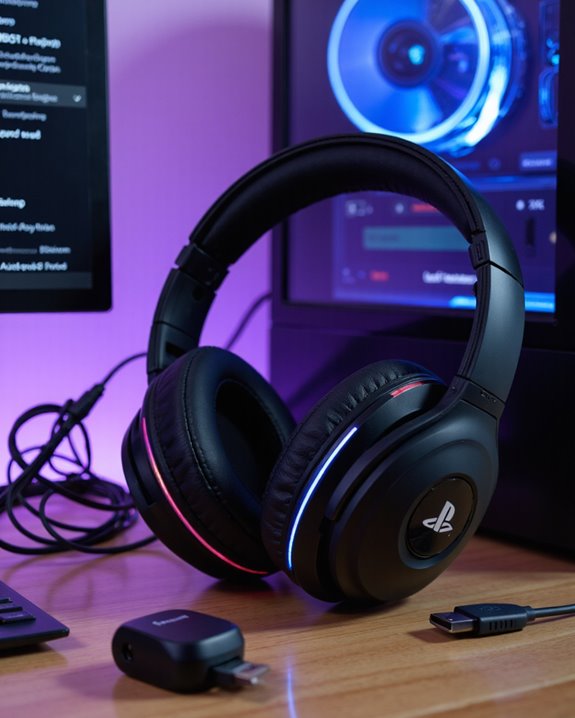
Although PS5 headphones are engineered for seamless integration with the console, connecting them to a PC can sometimes present unexpected challenges that require a methodical approach. First, let’s verify the headset is powered on and fully charged to prevent connection issues. When using the USB transceiver, we should plug it directly into a PC USB port—bypassing USB hubs—to maintain a stable connection. If the headset doesn’t connect automatically via 2.4 GHz wireless, press and hold the connect button on the USB transceiver for about five seconds to enter pairing mode. Next, confirm that the correct audio output device is selected in the sound settings: choose [INZONE H9 / INZONE H7 – GAME] for game audio and [INZONE H9 / INZONE H7 – CHAT] for voice chat.
Audio Quality and 3D Sound Support on PC
Once we’ve resolved basic connection issues, it’s important to verify the audio performance PS5 headphones deliver when used on a PC. The PULSE 3D Wireless Headset, for instance, stands out for its robust audio quality and immersive soundscapes. While designed primarily for the PS5, this headset offers strong 3D audio support on PC, largely due to its Tempest 3D AudioTech integration. Connecting directly to a PC’s USB port, rather than through a hub, minimizes signal loss and preserves high-fidelity sound. Dual noise-cancelling microphones guarantee that in-game communication remains clear. Although the full suite of PS5-specific audio enhancements may not seamlessly transfer to PC, we still benefit from precise directional cues and spatial awareness—essential for competitive gaming and an engaging listening experience. Many top PS5 headsets support Dolby Atmos/3D audio capabilities, which enhance the spatial audio experience on PC as well.
Adjusting Equalizer and Custom Audio Settings
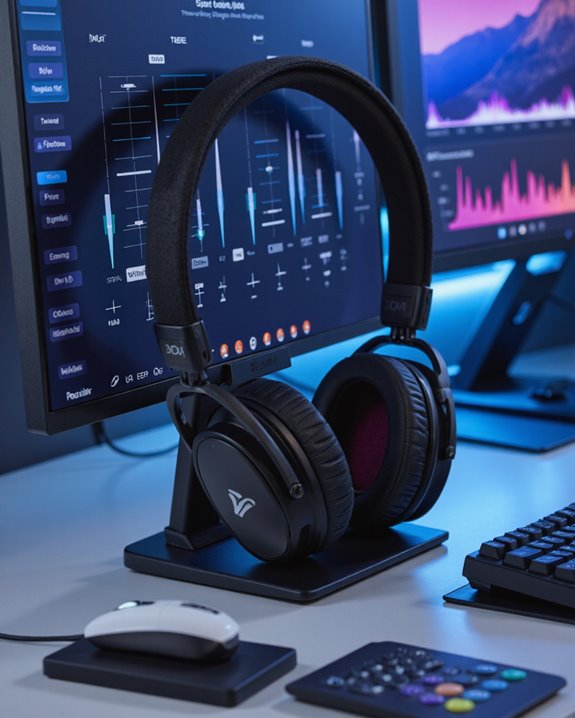
Even though the PULSE 3D Wireless Headset is optimized for the PS5, we can still access a range of equalizer and custom audio settings to refine our listening experience on PC. The headset provides three preset equalizer modes, along with three additional slots for personal EQ customization. While adjusting equalizer settings is straightforward on a PS5, achieving this on a PC may require third-party software or drivers, as native support is limited. It’s important to guarantee our audio drivers are up to date and to select the headset as the default output device in the system’s audio settings. Fine-tuning these controls allows us to emphasize important in-game sounds—like footsteps or ambient effects—maximizing immersion through targeted audio customization.
Wired Connection Options for PS5 Headphones on PC
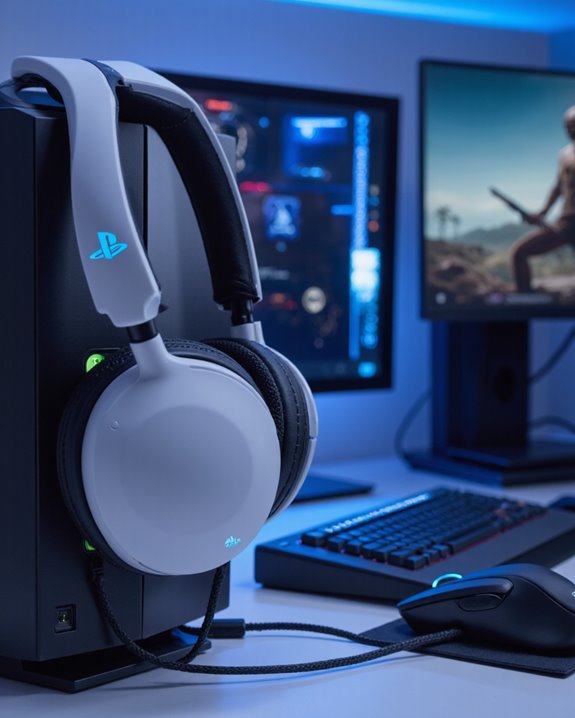
Connecting PS5 headphones—such as the PULSE 3D Wireless Headset—to a PC via a wired setup is a straightforward process that offers reliable audio playback and, with the right cable, microphone functionality. To establish a wired connection, we’ll need a 3.5mm audio cable featuring four conductors (TRRS), which supports both audio output and microphone input. Standard stereo cables (TRS) only deliver sound, so microphone functionality is lost without the correct cable. Once connected, the headset’s onboard volume controls are disabled—adjustments must be made directly through the PC’s sound settings. It’s crucial to configure the correct input and output devices within your operating system to guarantee clear audio and functional voice chat. Wireless features, meanwhile, remain inactive during wired use.
Frequently Asked Questions
Do the PS5 Headphones Work on PC?
We can assure you that PS5 headphones generally work on PC without major compatibility issues. By using the USB adapter, we’ll enjoy stable wireless connection and excellent audio quality, though we might need to adjust sound settings for best results.
Can I Use a Dualsense Headphone Jack on My PC?
Just like plugging in a familiar radio to a new outlet, we can use the DualSense headphone jack on our PC. With DualSense compatibility, tweaking headphone settings guarantees peak audio quality—though mic support and features may vary.
Why Is My PS5 Headset Not Working on My PC?
If we’re experiencing headset compatibility issues, let’s check if driver updates are necessary and make audio settings adjustments. Ensuring the USB transceiver is connected directly and selecting the correct output device often resolves PS5 headset problems on PC.
Can I Use PS5 Headphones on Other Devices?
Just as a key fits more than one lock, we can use PS5 headphones on other devices. However, compatibility issues may arise, so let’s check wireless connectivity and audio quality settings for the best experience.