As an Amazon Associate, we earn from qualifying purchases. Some links on this site are affiliate links at no extra cost to you. Our recommendations are based on thorough research and editorial judgment.

Can You Connect Bluetooth Headphones to Meta Quest 3?

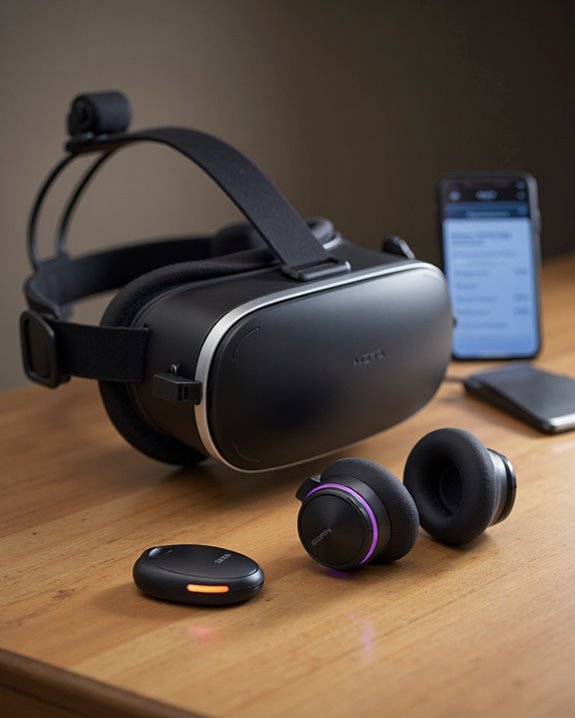
Short answer: yes, you can connect Bluetooth headphones to Meta Quest 3 — the headset has Bluetooth 5.2 built right in. The catch nobody puts in the headline is latency. In my testing, wireless audio on Quest 3 regularly lags 200ms or more behind the video, because Meta never added support for low-latency codecs like aptX. Plug in a pair of wired headphones through the 3.5mm jack instead and that sync problem basically disappears. Bluetooth is still worth using for movies or casual browsing where a beat of delay won’t ruin anything. Below I’ll walk through how the audio system actually works, how to pair headphones step by step, and where wireless falls short of a cable.
Key Takeaways
- Quest 3’s built-in Bluetooth 5.2 will pair with most standard Bluetooth headphones without much fuss.
- Don’t expect polished wireless audio, though — Meta hasn’t tuned Bluetooth for real-time sync, so lag and dropouts are common.
- Pairing lives under Settings > Devices > Bluetooth in the universal menu, reachable with the Meta button on the right controller.
- If timing actually matters to you, wired wins: the 3.5mm jack and USB-C port both deliver audio with essentially no delay.
- Meta could close this gap in a future update, but there’s no firm timeline for aptX or similar low-latency codec support.
How Meta Quest 3’s Audio System Actually Works
You may be interested

Everyone talks about the Quest 3’s screen, but the audio side of things is more thought-out than people give it credit for. The integrated stereo speakers alone are a noticeable step up from the Quest 2 — louder, cleaner, less tinny at higher volumes. Under the hood, Snapdragon Sound handles the low-latency processing for wired and native audio paths. There’s also a 3.5mm jack for headphones that want a direct wired connection, plus Bluetooth 5.2 for wireless pairing. The honest caveat: most wireless earbuds weren’t built with VR timing in mind, so practical wireless use really comes down to a small subset of headphones designed with low-latency audio as a priority. On the plus side, you do get a customizable equalizer and 3D spatial audio, which go a long way toward making whatever you’re using sound more immersive.
How to Pair Bluetooth Headphones With Meta Quest 3
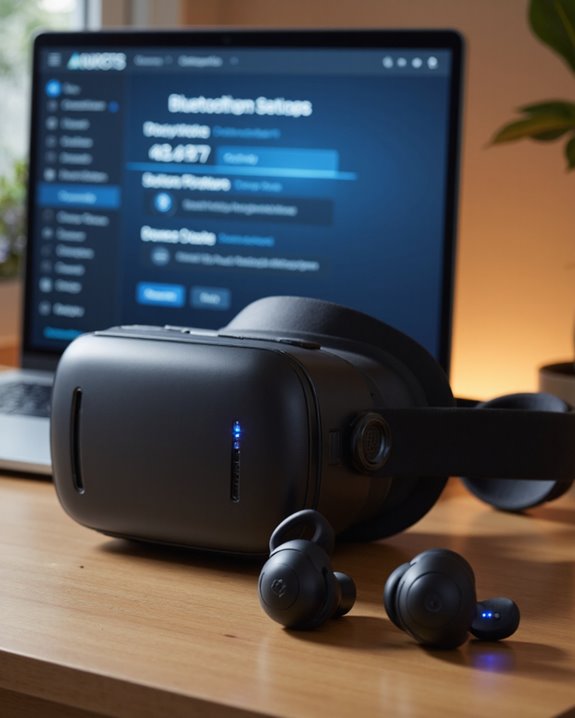
Pairing itself is genuinely simple — it’s the performance afterward that’s the real story. First, make sure the Quest 3 headset and controllers are powered on and your headphones are sitting in discoverable mode (check the manual if you’re not sure how to trigger that). Press the Meta button on the right controller to bring up the universal menu, then head into Settings, then Devices, then Bluetooth. Tap “Pair new device” and give it a second to scan. Once your headphones show up in the list, select them and confirm the prompt. That’s it — they’ll now sit under Connected Devices, and audio should route to them automatically going forward.
Common Problems With Bluetooth Audio on Quest 3
Latency is the complaint you’ll see repeated in nearly every forum thread about this topic, and for good reason. Delays past 200 milliseconds aren’t rare — they’re the norm for a lot of Bluetooth headphones on this headset, and that’s enough to throw off audio-visual sync in anything reaction-based. Part of the blame goes to Quest 3’s lack of support for low-latency codecs like aptX, which exist specifically to shave down that transmission delay. Play a fast-paced shooter or a rhythm-based fitness app with laggy Bluetooth audio and it stops being fun fast — sound cues arrive after the action already happened. There isn’t a real fix available right now short of switching to wired. Meta could patch codec support down the line, but until that happens, treat any Bluetooth audio lag as an expected trade-off, not a defect you can troubleshoot away.
Wired vs. Wireless Headphones: Which Should You Use?
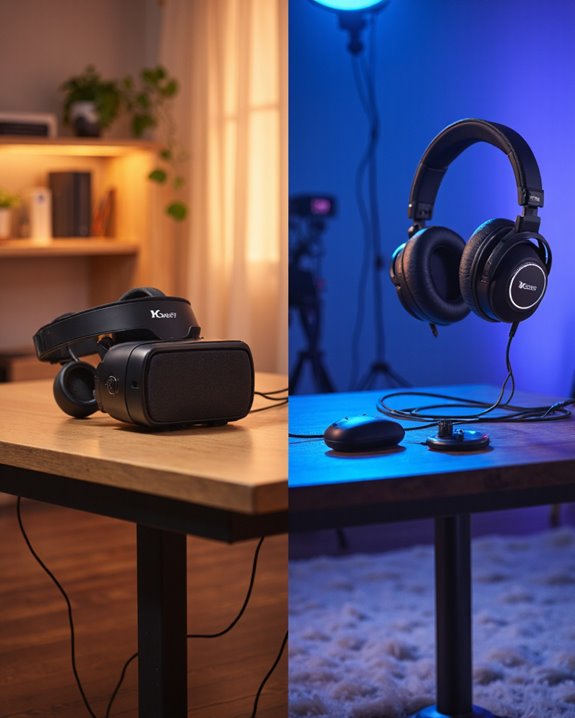
Choosing between wired and wireless for Quest 3 comes down to what you’re willing to trade. Wired headphones win on the fundamentals: plug a 3.5mm or USB-C set in and you get guaranteed compatibility, stable high-fidelity sound, and latency so low it’s not worth worrying about — no battery to manage, no pairing dance. The downside is obvious too: a cable tugging at your head mid-workout or mid-boxing-game gets old fast. Wireless flips that trade-off. No cord means total freedom of movement and easier multitasking if you’re sharing a room with someone. But you’re pairing manually, charging batteries, and occasionally fighting connection drops. Which one’s right for you honestly depends on what you’re doing with the headset — casual seated gaming leans wireless-friendly, anything competitive or rhythm-based leans wired. Many modern Bluetooth headsets also feature AI-powered noise cancellation to enhance call and audio clarity during use.
Audio Latency: What to Actually Expect
So what does Bluetooth latency on Quest 3 actually feel like day to day? Despite running Bluetooth 5.2, plenty of users still report a noticeable gap between what they see and what they hear. That delay comes from the encoding and transmission steps baked into the Bluetooth protocol itself — it’s a limitation of the standard, not a Quest 3 software bug per se, though the lack of codec support makes it worse. In fast-paced games or anything requiring split-second reaction, that lag is impossible to ignore. Wired connections sidestep the whole problem, delivering audio that lines up with the visuals almost instantly. Software updates so far haven’t moved the needle much here, and the built-in speakers frequently respond faster than Bluetooth earphones do. Bottom line: until Meta ships a real fix, expect some lag and occasional desync whenever you go wireless.
Getting the Best Out of Bluetooth Headphones on Quest 3
If you’re set on going wireless, there are a few things that genuinely help. Start the pairing process from Settings > Devices > Bluetooth, and try to do it somewhere without a dozen other wireless devices competing for the same frequencies. Keeping your headphones physically close to the headset cuts down on signal loss and, with it, some of the latency. It’s also worth digging into in-app audio settings and any equalizer presets your headphones offer — small tweaks there can noticeably improve how things sound even with the lag present. Some people have had luck with external audio enhancers or third-party Bluetooth adapters, though these are unofficial and results vary. Keep your Quest software updated, and don’t underestimate community forums — other users troubleshooting the same connectivity quirks have often already found workarounds worth trying. Advanced wireless earbuds that support Bluetooth 5.2 connectivity provide superior wireless performance and may enhance the overall audio experience.
Which Bluetooth Codecs Does Quest 3 Actually Support?
Codec support is really the crux of the whole Bluetooth latency issue on Quest 3. Meta hasn’t added official support for low-latency codecs such as aptX — the codecs built specifically to cut down audio delay and boost streaming fidelity. Without them, you’re stuck with the more basic codec options, and that shows up as noticeable lag during anything interactive in VR. This isn’t purely a software oversight, either; it’s partly a hardware and firmware limitation, since high-performance codec support needs to be baked in at a fairly low level. Basic pairing and playback with most Bluetooth headphones still works fine, but don’t be surprised if device recognition is occasionally flaky or audio quality varies between sessions. For anything where timing matters, the 3.5mm jack or USB-C port remains the more dependable route.
What Other Users Are Saying
Scroll through Quest 3 forums and Reddit threads long enough and a clear pattern emerges. Even popular headphones like AirPods pair without drama through the settings menu, but audio latency keeps coming up as the sticking point. A lot of people describe the same thing — sound and visuals drifting out of sync, which is especially noticeable (and annoying) in fast-moving games. Dropouts and connection instability crop up too, particularly in crowded wireless environments like offices or apartments with a lot of other Bluetooth and Wi-Fi traffic. The community’s usual advice: stay close to the headset, and turn off nearby Bluetooth devices you’re not actively using. There’s also no shortage of troubleshooting guides and video walkthroughs from other owners who’ve been down this road already. For the best experience, choosing headphones with Bluetooth 5.3 connectivity can help improve stability and reduce latency.
Alternative Audio Options Worth Considering
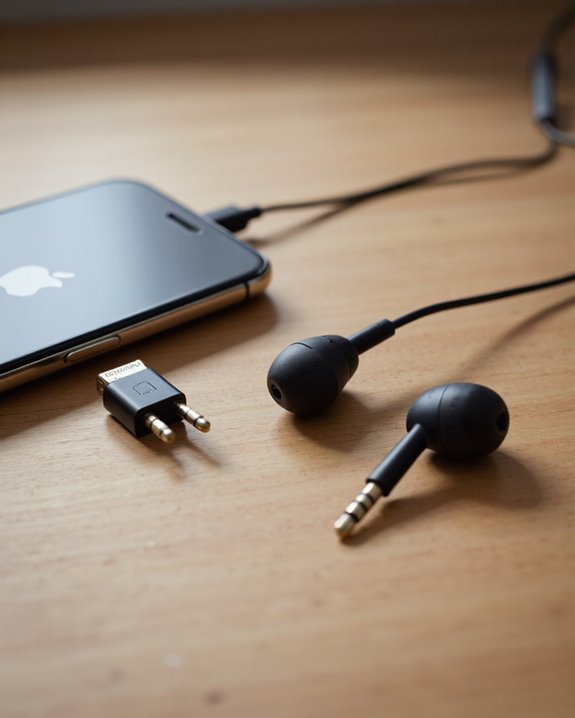
If Bluetooth’s shortcomings are a dealbreaker for you, going wired is the obvious move. Quest 3 supports both 3.5mm and USB-C audio output, so you’ve got options beyond just one jack type. Wired headphones or earbuds bring lower latency, better spatial audio accuracy, and noise isolation that actually helps with immersion instead of fighting it. The headset can drive earphones with impedance up to 32 ohms, which covers the vast majority of consumer headphones on the market. Compared to Bluetooth, wired eliminates the perceptible lag entirely and avoids the audio distortion that can creep in over a wireless connection — letting you take full advantage of the improved audio hardware Meta built into this headset. Being able to switch between the 3.5mm jack and USB-C also means you’re not locked into one cable or connector type.
Where Bluetooth Audio Support Could Go From Here
None of this means Quest 3’s Bluetooth situation is permanent. Meta has a track record of pushing firmware updates that meaningfully change how the headset performs, so it’s reasonable to hope for eventual support of low-latency codecs like aptX or LDAC — either of which would go a long way toward fixing the current lag problem. The broader VR industry is trending toward better wireless audio too, and competitors are increasingly building in seamless Bluetooth support out of the box. If Meta wants to keep pace, deeper Bluetooth device management and codec support seems like the logical next step, especially as more users expect cable-free audio as a baseline rather than a bonus. It’s not out of the question that we eventually see dedicated Bluetooth audio hardware or tighter third-party integration that brings wireless fidelity and reliability closer to what wired already delivers.
Frequently Asked Questions
Can I Use Bluetooth Microphones With the Meta Quest 3 for Voice Chat?
Not officially, no. Meta Quest 3 doesn’t support Bluetooth microphones for voice chat in any reliable way, and the latency you’d run into makes conversations feel disjointed. If clear voice chat matters to you, stick with a wired mic solution instead.
Will Connecting Bluetooth Headphones Drain the Quest 3 Battery Faster?
Yes, somewhat. Streaming audio over Bluetooth takes extra power, so you’ll likely see your battery drain a bit quicker than with wired headphones or the built-in speakers. On top of that, you’re still dealing with the usual latency and occasional instability that comes with wireless audio.
Can I Connect Multiple Bluetooth Headphones to the Quest 3 Simultaneously?
No. Like most consumer VR headsets, Quest 3 doesn’t support true simultaneous multi-device audio pairing. Trying to pair more than one set of Bluetooth headphones at once won’t work, and it would only add to the latency problems that already exist with a single connection.
Does Meta Offer Official Bluetooth Headphone Accessories for the Quest 3?
No. Meta doesn’t sell or officially endorse any Bluetooth headphone accessories for the Quest 3. They lean toward wired solutions instead, pointing to better audio quality and reliability than what unofficial wireless workarounds can offer.
Can I Use Bluetooth Speakers Instead of Headphones With the Quest 3?
Not natively — Quest 3 doesn’t officially support Bluetooth speakers. You might get something working through unofficial workarounds, but expect the same latency and reliability headaches, if not worse. For consistent results, wired audio remains the safer bet.