As an Amazon Associate, we earn from qualifying purchases. Some links on this site are affiliate links at no extra cost to you. Our recommendations are based on thorough research and editorial judgment.

How to Find Headphones on Iphone: a Quick Guide

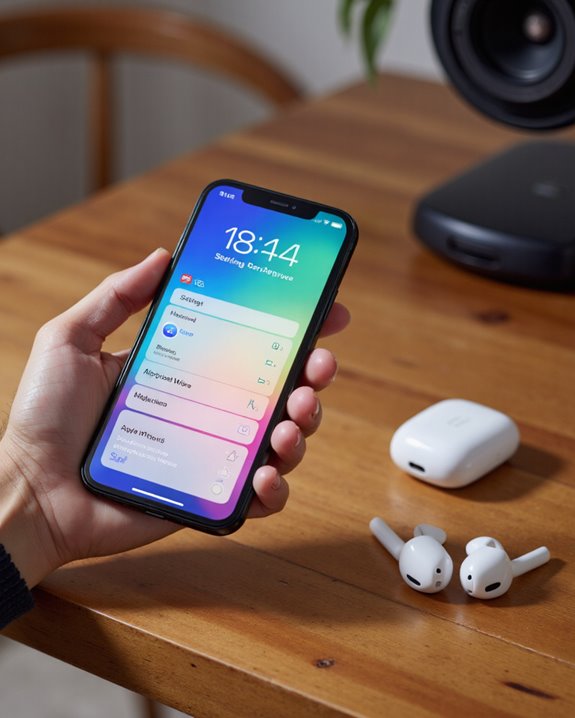
Lost track of your earbuds again? Here’s the fast version: to find headphones on iPhone, flip on Bluetooth in Settings, put your headphones into pairing mode, then tap the device name in the iPhone’s Bluetooth menu. If they’ve actually gone missing, open the Find My app – it’ll show the last spot they pinged from and can trigger a chime if they’re close by, using Ultra Wideband on newer models to get you within arm’s reach. Curious how loud you’ve actually been listening? Control Center and the Health app both track that too. Stick around and I’ll walk through the pairing process, the tracking tricks, and a few settings most people never touch.
Key Takeaways
- Open Find My, tap your headphones in the device list, and you’ll see their last known spot on a map.
- Nearby but buried in a couch cushion? Play Sound in Find My makes them chirp so you can hunt them down by ear.
- Bluetooth has to be on in iPhone Settings before your phone can see or reconnect to your headphones.
- Got AirPods or another Ultra Wideband model? Find Nearby gives you a much tighter fix on location than the map alone.
- A quick glance at the status bar – look for the headphones icon – tells you instantly whether you’re actually connected.
How to Pair Headphones With Your iPhone
You may be interested

Pairing headphones to an iPhone isn’t complicated, but skipping a step is exactly how people end up staring at a blank Bluetooth list for ten minutes. Start in the iPhone’s Settings menu and switch Bluetooth on so the phone is actively scanning. Most headphones need to be powered off first, then coaxed into pairing mode by holding the power button or a separate pairing button until you see an LED indicator flashing – that flash is your cue that they’re broadcasting and ready to be found. It’s also worth checking that your headphones’ Bluetooth version plays nicely with your iPhone’s, since mismatches are a common source of dropouts later. Once the name shows up in the iPhone’s Bluetooth list, tap it and pairing kicks off automatically. You’ll know it worked when the LED goes solid and the headphones show up under “My Devices.” I’d still run a quick audio test afterward – it only takes a few seconds and saves you the headache of discovering a problem mid-call.
Using Find My to Track Down Lost Headphones
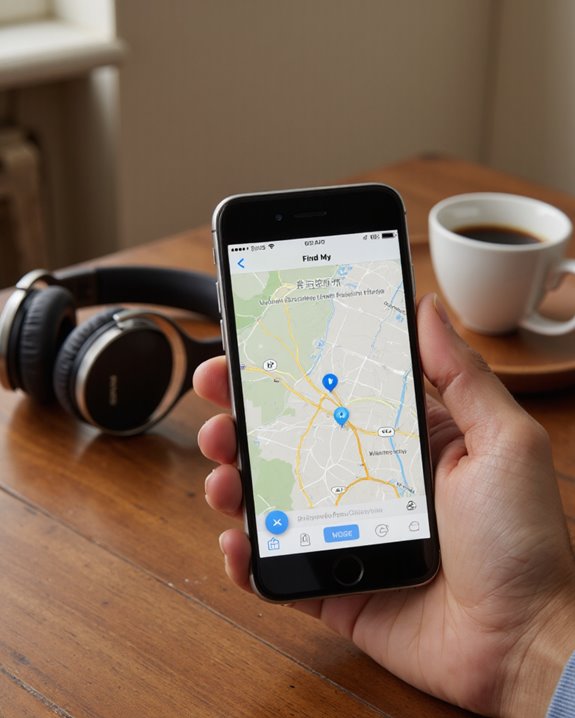
Even a solid pairing setup won’t stop headphones from vanishing between couch cushions or under a car seat. That’s where the Find My app earns its keep – it’s built specifically for tracking headphones like AirPods, AirPods Pro, and select Beats models. Open it on an iPhone or iPad, pick your missing headphones from the device list, and the app plots their last known location on a map, assuming they were online or in Bluetooth range recently. If the map puts them somewhere in the house, tell the app to play a sound and follow your ears. Newer models add Ultra Wideband and Find Nearby into the mix, which narrows things down with a precision the map view alone can’t match – genuinely useful when “somewhere in the living room” isn’t good enough.
Monitoring Headphone Audio Levels on Your iPhone
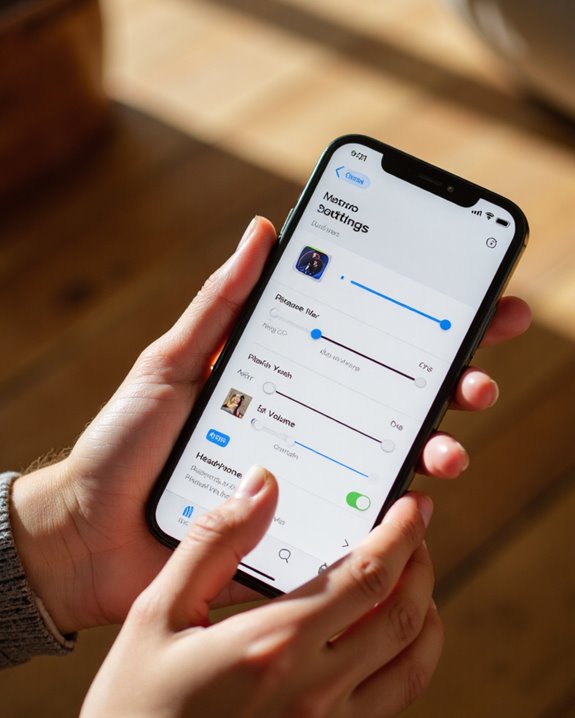
With headphones basically glued to our ears all day, how do you actually know if you’re listening too loud? Apple built in tools that answer that question without much effort on your part. Add the Hearing feature to Control Center and you get a live decibel reading of whatever’s coming through your headphones right now. The Health app takes the longer view, logging your listening history so you can spot patterns across days and weeks rather than just a single moment. When volume creeps past a safe threshold for too long, volume notifications step in and pull the level down automatically – the trigger is a mix of how loud and how long, not just a single spike. You can always turn the volume back up manually, though don’t be surprised if the warning resurfaces. Apple Watch owners get the same protection extended to ambient noise around them, which rounds out Apple’s approach to hearing safety pretty thoroughly.
Customizing Your Headphone Audio Settings
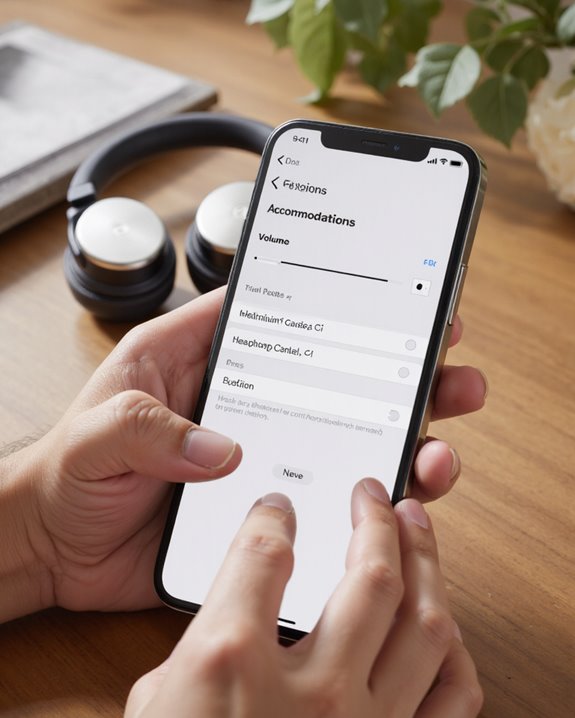
Most people never open this menu, and that’s a shame, because it can genuinely change how your headphones sound. Head to Settings > Accessibility > Audio & Visual and turn on Headphone Accommodations – this is Apple’s built-in audio tuning tool. From there you can run Custom Audio Setup: find a quiet room, keep your headphones connected, and follow the prompts to set preferences that apply to calls, media, or both. Prefer to do it by hand? Sliders let you adjust audio balance and tone directly, and there are presets like Balanced Tone, Vocal Range, and Brightness if you want a quick frequency boost without fiddling. If something sounds off after tweaking, resetting the Music EQ usually fixes it, and it’s worth confirming you’re on the latest iOS first. Everything here can be saved, undone, or A/B tested against different media, so there’s little risk in experimenting.
Reading Your iPhone’s Headphone Connection Indicators
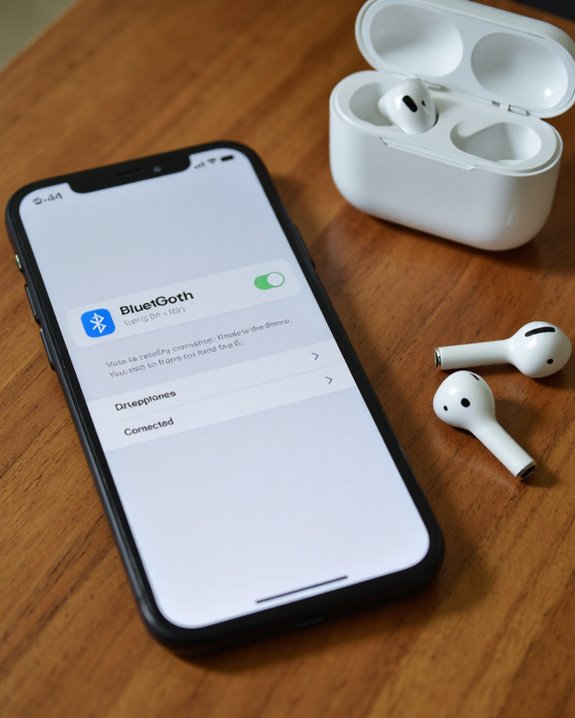
Getting your audio dialed in is only half the battle – you also need to know at a glance whether you’re actually connected. The status bar flashes a small headphones icon whenever Bluetooth headphones are linked up, while Lightning or USB-C pairs switch the output mode automatically the moment you plug in. Want to double-check volume or hearing exposure? That lives in Control Center. Don’t confuse the orange and green indicator lights for connection status, by the way – those flag microphone and camera use, nothing to do with headphones. If you’re on an older iPhone or iPad, check your connector type before assuming compatibility, since not every model supports USB-C or Lightning accessories. And when a connection keeps dropping for no obvious reason, the usual fixes still apply: check signal strength, update iOS, and restart both devices before you assume the headphones themselves are broken.
A Few More Tips for Getting the Most Out of Your Headphones on iPhone
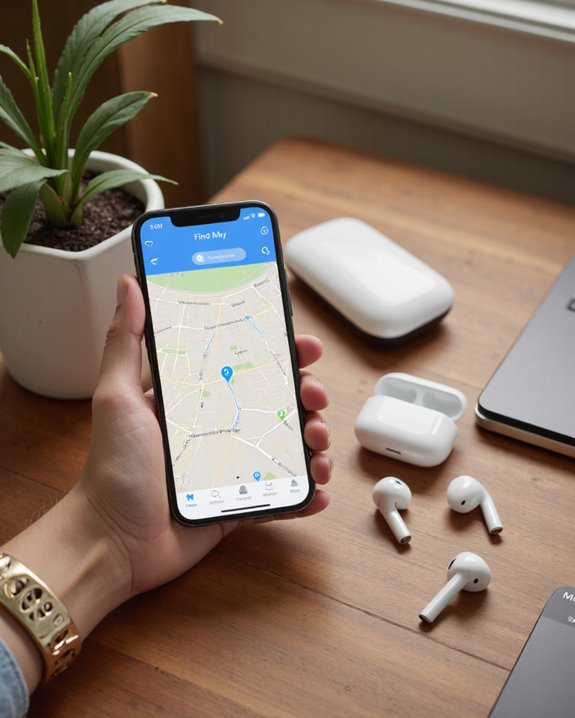
A handful of small habits separate people who just use headphones from people who actually get the best out of them. Start with Headphone Accommodations under Settings > Accessibility > Audio & Visual, where you can tailor frequency response and amplification to your own hearing rather than a generic profile. Keep an eye on real-time audio levels through the Hearing widget in Control Center – those live decibel readings are one of the easiest habits to build for protecting your hearing long-term. The Health app fills in the bigger picture with historical listening data, so you can catch a bad habit before it becomes a problem. Keeping iOS current matters more than people think, since Apple regularly slips new safety and customization options into updates. When you do run Custom Audio Setup, do it in a genuinely quiet room, and revisit your balance settings occasionally – especially if you’re running AirPods Pro or Max, where the tuning options actually make a noticeable difference. If your current pair just isn’t cutting it anymore, our guide to the best wireless earbuds can point you toward something that pairs cleanly with iPhone and sounds good right out of the box.
Frequently Asked Questions
Can I Connect Multiple Headphones to My iPhone at the Same Time?
Bluetooth wasn’t really built for this, so don’t expect it to work like magic – but Apple’s Audio Sharing feature does let you link two sets of compatible headphones to one iPhone at once. Non-Apple gear generally needs a separate transmitter, since standard Bluetooth just doesn’t support pairing multiple headphones to a single iPhone without some kind of workaround.
What Should I Do if My Headphones Are Physically Damaged?
First, check the obvious stuff: inspect and clean the connections, then test the headphones on a different device to rule out a phone-side issue. If the damage is real, look into professional repair rather than pushing through it. Cleaning regularly and handling your headphones carefully goes a long way toward avoiding this in the first place.
Are There Apps That Improve Headphone Sound Quality Beyond iPhone’s Built-In Settings?
Yes – there’s a decent selection of third-party apps for iPhone that go further than Apple’s native controls, offering custom equalizers, bass boost, and even 3D surround simulation. Worth trying if you’ve maxed out what the stock settings can do.
How Do I Clean and Maintain My Headphones Safely?
Stick to gentle cleaners, keep water away from them, and pop off any detachable ear tips or cushions so you can clean them separately. Get in the habit of checking for wear every so often. Beyond that, store them properly and follow whatever the manufacturer recommends – it genuinely extends the life of the pair.
Can My iPhone Track Non-Bluetooth Wired Headphones if Lost?
No – wired headphones have no wireless radio inside, so there’s nothing for the iPhone to track; it’s a bit like trying to find a shadow after the sun’s gone down. If losing a wired pair is a recurring headache, you’re better off relying on physical organization habits or a third-party tracker tag. And if constant pairing headaches have you ready for a change anyway, check out our roundup of the best wireless headphones for reliable, iPhone-friendly picks.